A reimagined original Azeroth.
Blizzard describes Forever as a new permanent home alongside modern and Classic WoW, returning players to the original continents with new stories, systems, and updates.

World of Warcraft · Setup hub
Start with the controls you already use, then change only what gets in your way. WoW: Forever is a permanent new home alongside modern and Classic WoW: original Azeroth with new stories, systems, and future updates.
The broad answer
Retail and Classic guides can still help with controls, but version-specific claims need a fresh check.
Blizzard describes Forever as a new permanent home alongside modern and Classic WoW, returning players to the original continents with new stories, systems, and updates.
Your setup has to handle travel, world content, professions, social stops, and long leveling sessions, not just endgame action bars.
Forever is not a seasonal Classic realm, and old addons, layouts, and input habits may not behave the same way. Check the client before relying on an older guide.
Access
An active World of Warcraft Subscription or Game Time includes access at launch.
For the announced Nov. 4 launch date and setup checklist, see our WoW Forever launch checklist.
Featured hardware picks
These two core picks cover fixed and adjustable 12-button grids. The table below lists a starting model for each other hardware category.
As an Amazon Associate we earn from qualifying purchases.
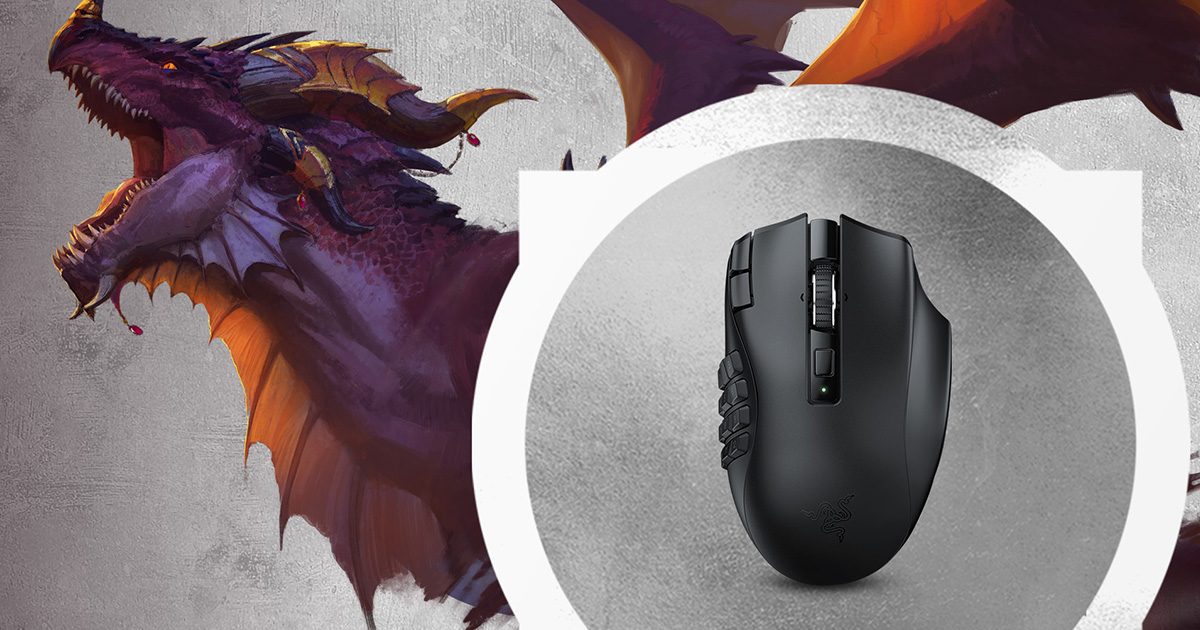
Razer Naga V2 HyperSpeed (Black)
Fixed 12-button gridBest for: a 12-button thumb grid with tilt-scroll inputs.
The side grid has 12 buttons, and the scroll wheel tilts left and right. Map only the actions you can reach comfortably, then add modifier layers if you need them.
Read the guides: WoW: Forever mouse buying guide · MMO mouse setup · small-hand fit
Razer Naga V2 HyperSpeed (Black)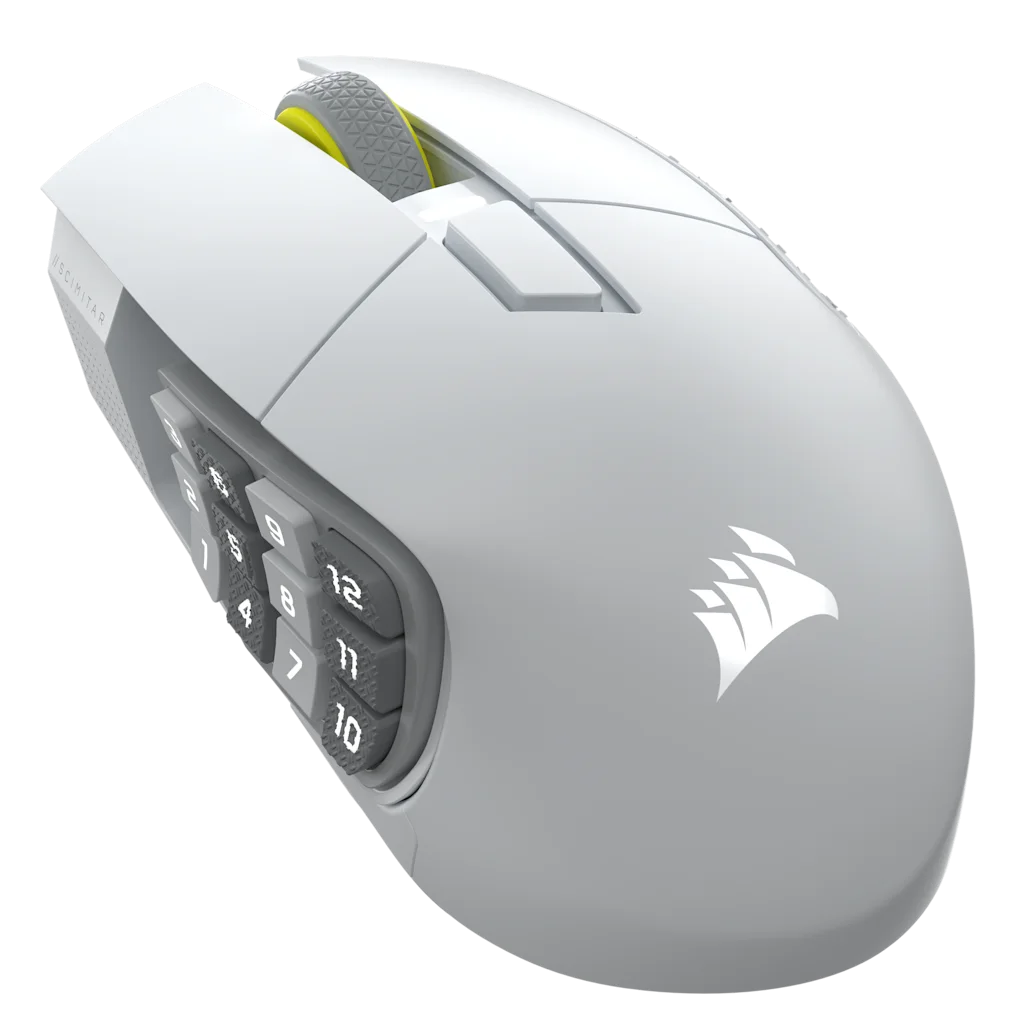
White configuration
Sliding thumb panelBest for: a 12-button panel that can shift along the side of the mouse.
The Key Slider moves the panel forward or back and locks with a hex key. Set its position before mapping the buttons.
Read next: compare MMO mice for smaller hands · compare it with the Naga V2 Pro.
Corsair Scimitar Elite Wireless SEWoW hardware starter matrix
Start with the controls you know, then compare one category at a time.
These starting models cover the listed input categories. Use the other options column when you need a different layout or feature.
Scroll sideways to compare the categories.
| Category | Our pick | When it fits | Other options |
|---|---|---|---|
| 12-button MMO mouse | Razer Naga V2 HyperSpeed (Black) | 12 mechanical thumb buttons and a tilt-scroll wheel, with 19 programmable controls. | Choose the Scimitar when a sliding thumb panel is more useful than a fixed grid. |
| Adjustable 12-button mouse | Corsair Scimitar Elite Wireless SE (White) | Its 12-button Key Slider moves forward or back by up to 8 mm and locks with a hex key. | None |
| Tenkeyless keyboard | 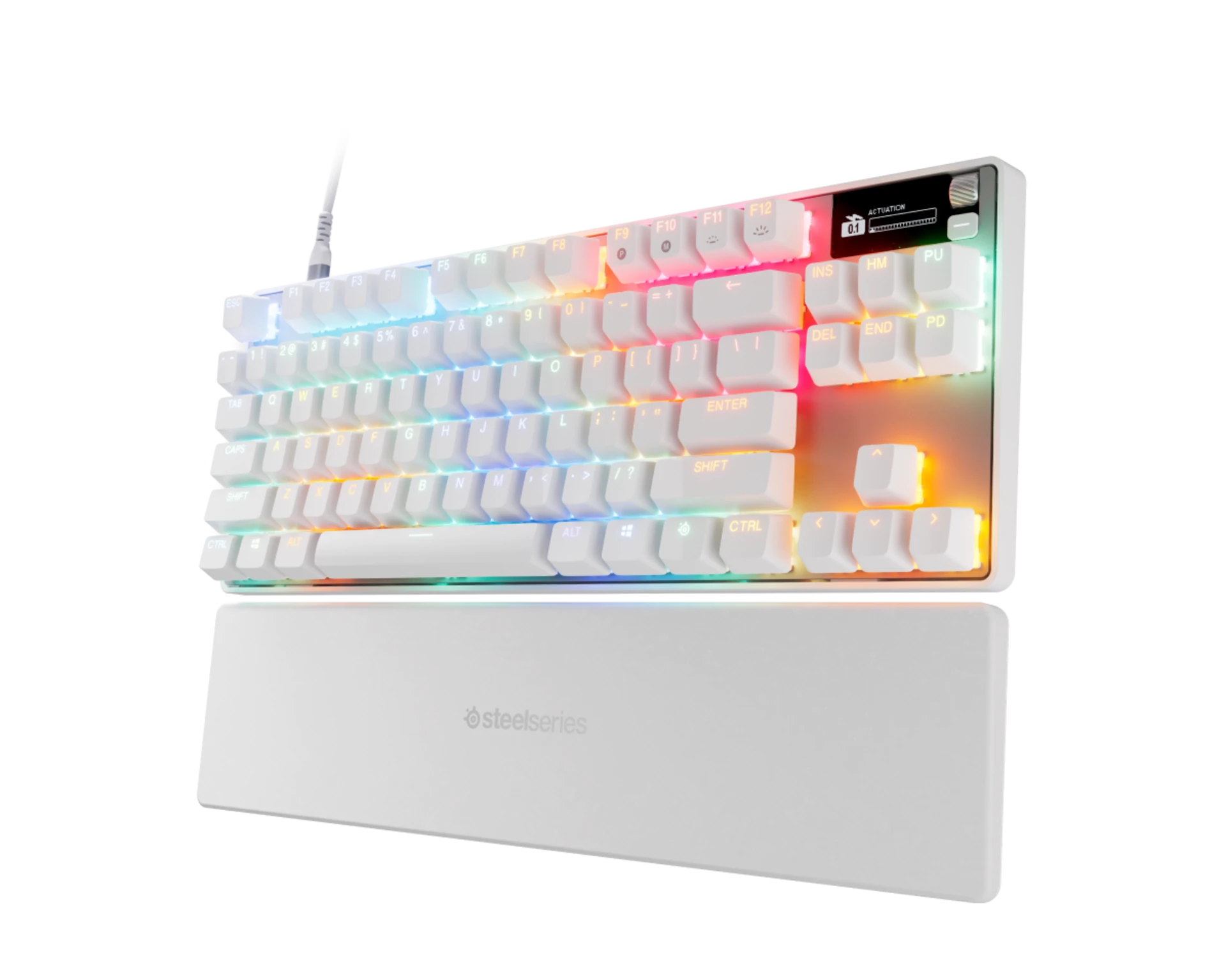 SteelSeries Apex Pro TKL Gen 3 (White) SteelSeries Apex Pro TKL Gen 3 (White) | OmniPoint 3.0 Hall-effect switches allow per-key actuation adjustment in a tenkeyless layout. | The hub shortlists this model for the adjustable-actuation option. |
| Left-hand gaming keypad | Razer Tartarus Pro | A left-hand keypad with adjustable actuation. Check Razer's current documentation for supported software and functions. | Use only if a separate left-hand input fits your layout. |
| PC gamepad | 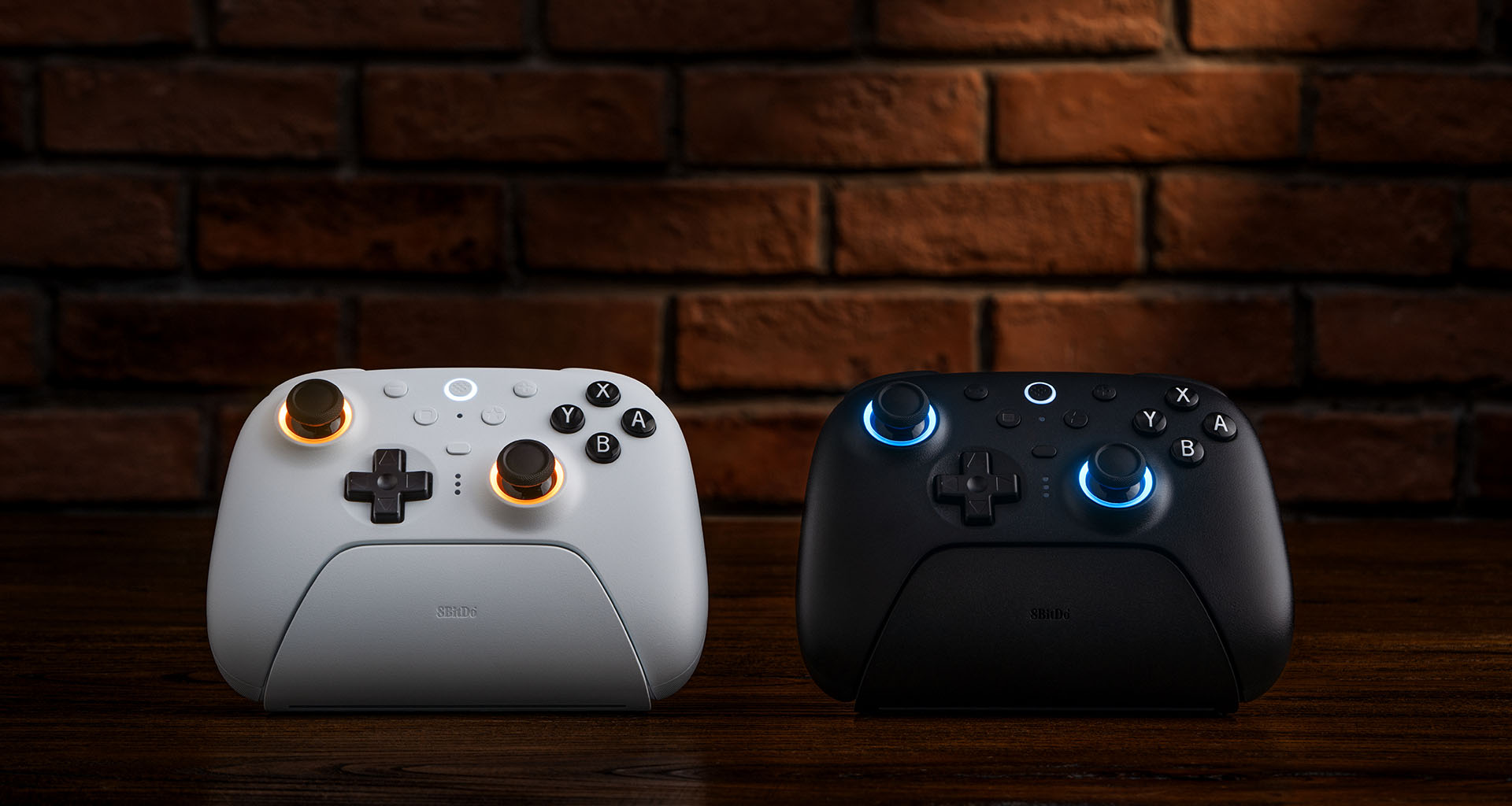 8BitDo Ultimate 2 Bluetooth Controller (White) 8BitDo Ultimate 2 Bluetooth Controller (White) | TMR joysticks, switchable trigger modes, two back paddles, and two extra shoulder bumpers. | Check the manufacturer's connection guidance for this exact controller and platform. |
| 21:9 ultrawide monitor | ASUS TUF VG34VQL3A | Compare its current manufacturer specifications with your desk depth, GPU, and preferred refresh range. | Check the current model page before deciding. |
Check the selected model and connection options against your PC and intended setup.
Choose your setup
Choose by the actions you need to reach, the content you play, and the controls you already know.
If keyboard and mouse works for you, keep it. An MMO mouse puts more actions under your thumb, a controller changes how you move and target, and a keypad gives your left hand its own layout. Try one change at a time and keep what feels reliable.
Use this when movement, modifiers, and action bars already feel predictable. It keeps chat, targeting, menus, and ordinary PC tasks straightforward.
Choose a fixed grid, adjustable panel, or lighter side-button mouse only after you can name the actions that need to move under your thumb.
See the Forever gear guide · Compare Logitech G600 replacements · Map the mouse buttons
Blizzard lists official gamepad support. Test movement, camera, action bars, targeting, and menus in low-stakes content, and keep a mouse nearby for text and dense interfaces.
Read the controller setup guide · Check Forever controller settings
A keypad can move movement and repeatable actions into a dedicated physical zone. It takes time to learn, so start with one layer rather than a full set of profiles.
A reversible baseline
Gear comparisons
Use these when you are down to two specific models.
Compare two models when thumb reach, control layout, or budget is still undecided. Then use the guides below to map controls or tune the client.
Razer Naga V2 Pro vs Corsair Scimitar Elite Wireless SERazer Tartarus V2 vs Tartarus Pro
Equipment comparisons
Compare extra binds and the tradeoffs between 4K and ultrawide displays.
Six remappable Wolverine controls versus two 8BitDo rear paddles and a charging dock.
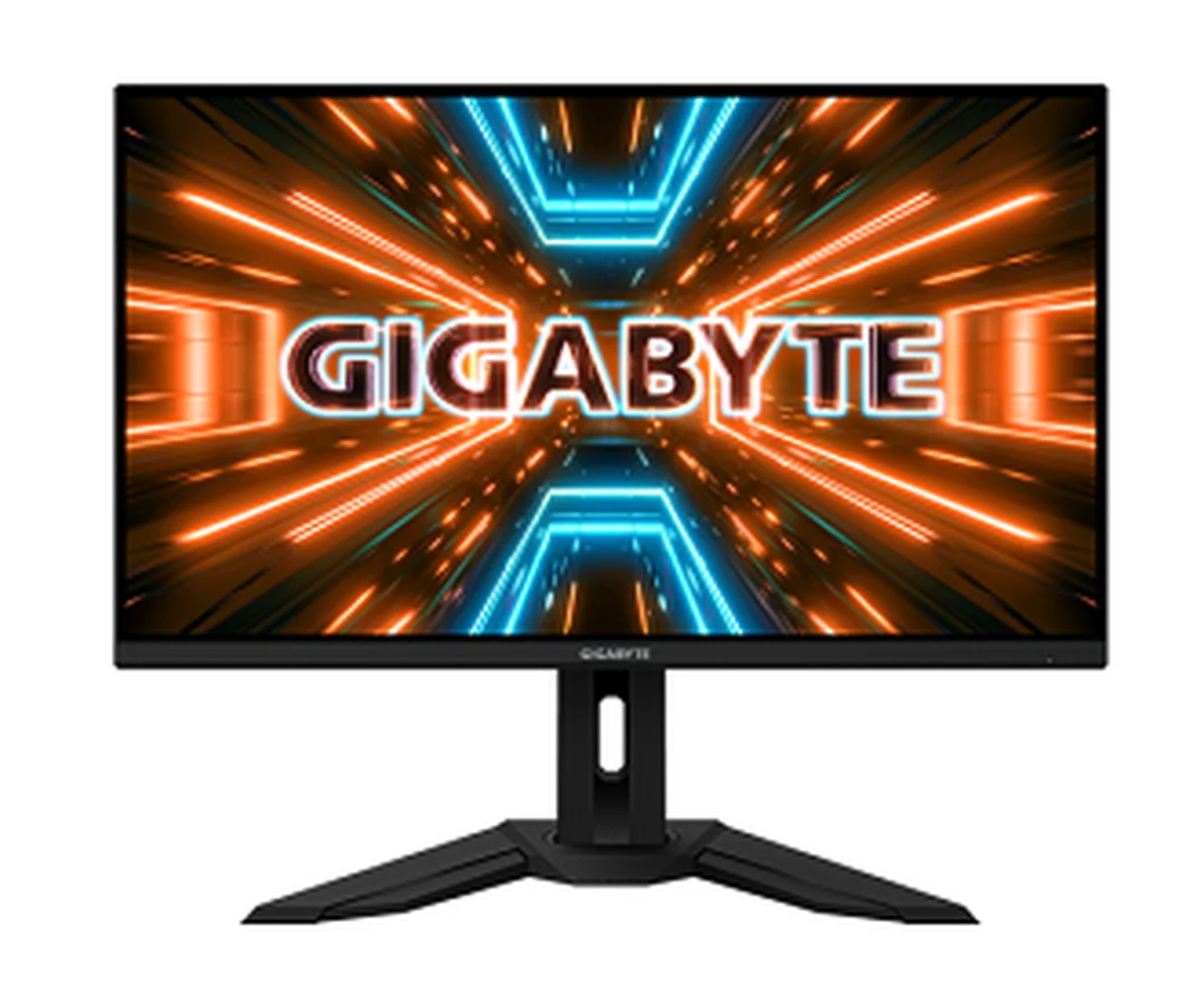
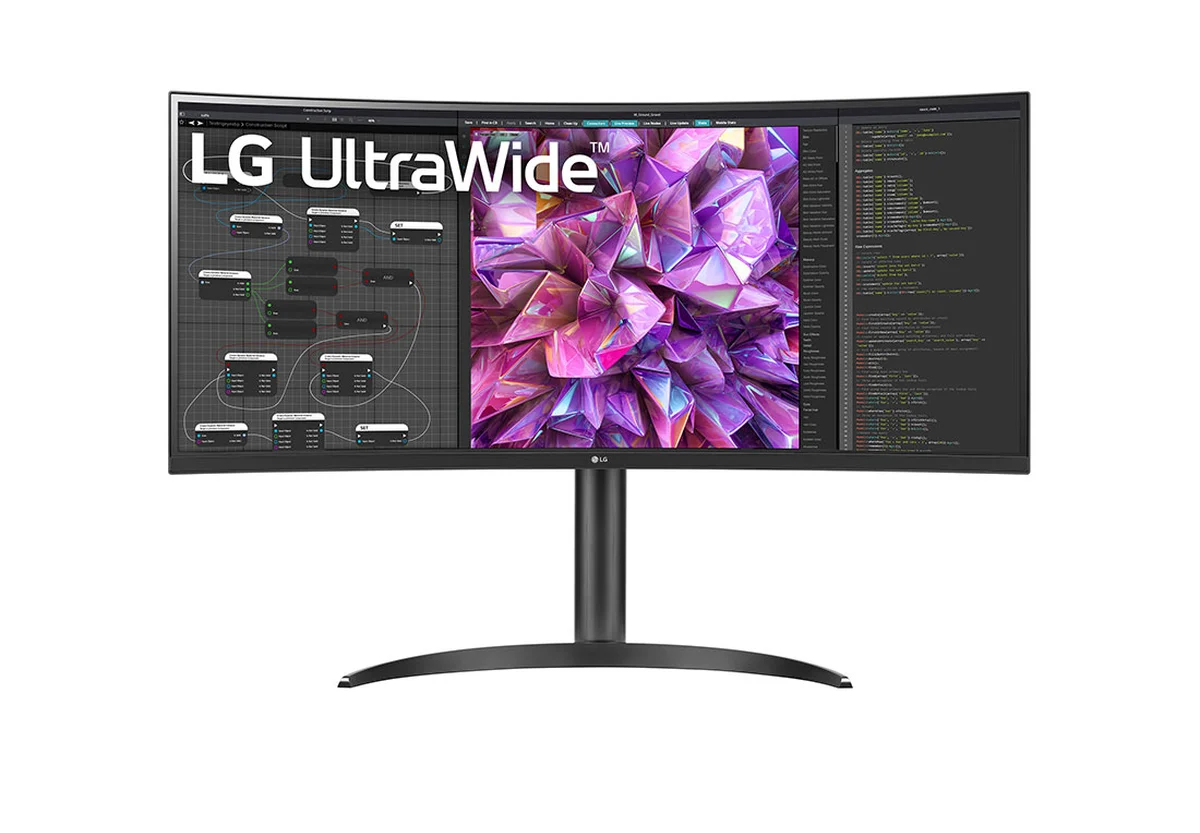
4K 144Hz multi-client space versus 21:9 at 60Hz with 90W USB-C and KVM.
Supporting setup guides
The keybind and display guides below cover Forever. The Stream Deck guide covers Retail utility hotkeys; check client-specific inputs before using its suggestions in Forever.
Compare the Tartarus V2’s eight-way thumbpad with the Azeron Cyborg’s thumbstick, then build a movement map for your device.
Use the worksheet to record and manually test the input choices that matter in your setup.
Match a 12-button grid to three action bars and keep each position in place across modifier layers.
Test movement, action bars, targeting, menus, and a mouse fallback on the current client.
Compare a 34-inch 21:9 display with dual 27-inch 16:9 screens for raid UI and second-screen use. For a named monitor matchup, see 4K versus a 21:9 IPS display with KVM.
Retail utility hotkeys and app shortcuts, with combat actions kept in the game input map.
Compare an open-back setup with a standalone mic against a wireless headset for long raid nights.
Center combat frames and keep text readable in keyboard/mouse and controller layouts.
FAQ
No. Blizzard describes it as a new permanent home alongside modern and Classic WoW, not a mode, season, or new version of Classic.
Yes. Blizzard lists official gamepad support. Keep a mouse and keyboard nearby for chat, inventory and dense menus. Use the Forever worksheet to record the controls in your current build and test the layout before relying on it.
Our pick is the Razer Naga V2 HyperSpeed if a fixed 12-button grid suits your thumb. If it doesn't, the WoW: Forever gear guide compares adjustable panels and swappable plates so you can match the layout to your hand.
No. A keyboard and standard mouse can cover WoW's action bars. A 12-button grid can put more mapped actions under your thumb if you prefer that layout. Start with a few familiar binds, then check that the buttons are comfortable to reach. See the WoW MMO mouse setup guide.
Partly. Input and comfort advice carries over. Addon behavior, UI details, and anything version-specific need their own check, because the two clients may differ.
Start by organizing your keybinds and UI. If a specific control or layout problem remains, choose a device for that job: an MMO mouse or keypad can add more reachable inputs, a controller offers a gamepad layout, and an ultrawide gives more room for interface panels.
Do not assume they will. Check the author's support for the exact Forever client build before relying on an add-on, and keep a setup that works without it for core play.
Keep it current
For Blizzard's gamepad announcement and input rules, see the official updates below.
Use the mouse keybind visualizer to compare layouts before you change hardware.
Plan a centered raid HUD and compare screen shapes. Check the layout in the WoW: Forever client before relying on ultrawide support. Try the MMO monitor and UI scaling simulator.