Monitors · OSRS, Albion, WoW, and FFXIV

Gigabyte M32U vs LG 34WQ73A-B: 32-Inch 4K vs 34-Inch Ultrawide for MMOs

Both are IPS displays with KVM and USB-C, but their layouts and refresh rates point to different MMO desks.

The short answer

Choose the LG 34WQ73A-B if you want a 21:9 view, built-in KVM, and 90W USB-C. The Gigabyte M32U stays here as a 4K comparison reference, not a pick. For higher refresh, the ASUS TUF VG34VQL3A reaches 180Hz over DisplayPort, while the Alienware AW3423DWF offers 165Hz QD-OLED.

How this was assessedManufacturer specifications, the M32U manual, and resolution arithmetic. Window fit and game performance depend on scaling, interface layout, and the computer.
SourcesGIGABYTE, LG, ASUS, and Dell specifications, with independent display review context
Page freshness

A four-window 4K grid or a single 21:9 view

The M32U trades a wider single-client canvas for more pixels and higher refresh; the LG trades gaming refresh for a curved ultrawide workspace and stronger USB-C power delivery.

Buying through our Amazon links costs you nothing extra and helps keep MMOSetup free. As an Amazon Associate we earn from qualifying purchases.

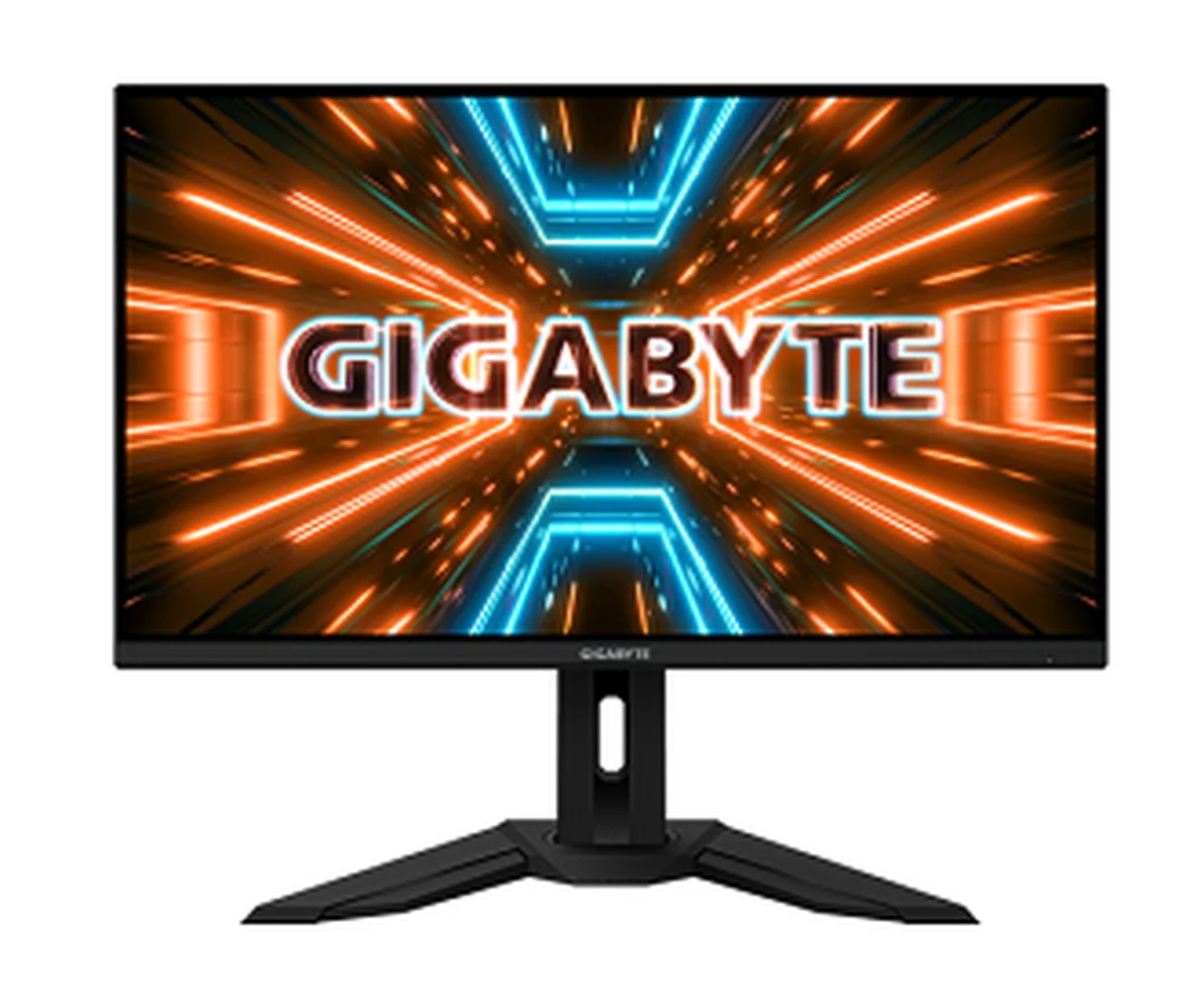
Gigabyte M32U 32-inch 4K monitor on its stand
4K comparison reference

Gigabyte M32U 32-inch 4K

Reference: GIGABYTE lists 3840×2160, 144Hz, KVM, and USB-C. Its pixel grid divides into four 1920×1080 regions before display scaling and window borders reduce usable space. This card is comparison context, not a pick.

Tradeoff: its USB-C port provides up to 18W, so a laptop needing more power still needs its own charger. A 16:9 screen also gives one client less side-to-side room than 21:9.

Gigabyte M32U comparison reference on Amazon
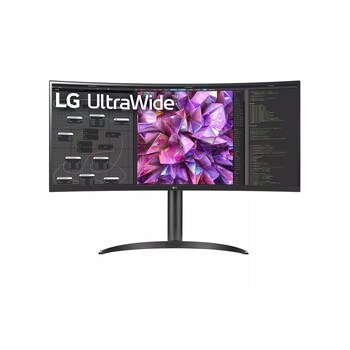
LG 34WQ73A-B curved 34-inch ultrawide monitor on its stand
21:9 workspace with 90W USB-C

LG 34WQ73A-B curved ultrawide

Best for: one active WoW or FFXIV client with room for raid frames, chat, and a browser or work window beside it.

Tradeoff: the LG tops out at 60Hz. That is less headroom than the M32U’s 144Hz if high-refresh play is part of the decision.

LG lists an IPS panel at 3440×1440, built-in KVM, and USB-C power delivery up to 90W. Check the laptop’s requirement before relying on one-cable charging.

LG 34WQ73A-B on Amazon

The shared KVM feature does not make these equal displays

Resolution, refresh, curvature, and USB-C power delivery change how each monitor fits the desk.

Gigabyte M32U vs LG 34WQ73A-B: multi-client and ultrawide monitor specifications
FeatureM32U34WQ73A-BEdge
Panel31.5-inch SS IPS34.14-inch IPSBoth IPS
Resolution and shape3840×2160, flat 16:93440×1440, curved 21:9 (3800R)Depends on client layout
Example OSRS window split2×2 grid: four 1920×1080 regionsThree equal columns: about 1147×1440 eachWindow borders and UI scaling reduce usable space
Maximum refresh144Hz60HzM32U for high refresh
Separate ultrawide alternativeASUS TUF VG34VQL3A, a 34-inch 3440×1440 VA monitor rated up to 180Hz over DisplayPort.Alternative, not in the head-to-head
KVMBuilt-in KVMBuilt-in KVMBoth include KVM
USB-C power deliveryUp to 18W per GIGABYTE manual90W per LG specificationsLG for laptop power
Use at one clientMore vertical pixels, less horizontal roomWide raid view with side panelsChoose by interface shape

4K multiplies windows; 21:9 widens one client

The M32U's 4K grid is a multi-client reference

At 3840×2160, the M32U divides into four 1920×1080 regions. This gives OSRS or Albion players a layout reference for several visible inventories and views. It does not guarantee the whole client interface will fit: window borders, Windows scaling, chat panes, and each game’s minimum window size still matter.

For OSRS, check RuneLite’s UI scaling and window layout in each client before treating one quadrant as usable space. For Albion, confirm the menus and combat view remain legible at the chosen scale. The multi-client monitor layout guide compares the same 4K and ultrawide tradeoff.

The LG gives one raid client a wider frame

The LG’s 3440×1440, 21:9 format gives one WoW or FFXIV client room for a central game view and peripheral panels. Two 1720×1440 windows fit side by side, while a four-client 2×2 layout would leave much narrower regions than the M32U. LG lists a 3800R curve, KVM, and 90W USB-C delivery, which may suit a work laptop and a gaming PC sharing one monitor.

The practical limit is the 60Hz maximum. If you want a higher-refresh single-client display, the Alienware and ASUS ultrawide comparison covers the panel and refresh tradeoff, including the ASUS at 180Hz over DisplayPort.

Both have KVM, but only one supplies laptop-class power

Both displays include a KVM and USB-C. GIGABYTE’s M32U manual lists USB-C output modes up to 18W and advises a separate power source for devices that need more. LG specifies 90W USB-C delivery. That gap matters when the monitor is the shared screen for a work laptop: the KVM can switch connected keyboard and mouse, but it does not raise the M32U’s charging output.

Confirm the connection diagram for both host computers before you rely on KVM. On either model, the USB connection for keyboard and mouse must reach the relevant host, and display inputs must match the cables in use.
Where each monitor fits

4K layout reference

Gigabyte M32U

Its 3840×2160 grid divides into four 1920×1080 regions, a reference for checking whether OSRS or Albion clients fit a 2×2 layout. Window borders, scaling, and each game's interface reduce usable space. The OSRS setup hub and Albion setup hub cover the game-specific context.

WoW or FFXIV raid view

LG 34WQ73A-B

Choose the 21:9 canvas when one client needs space for side UI and the monitor also shares a desk with a laptop. The built-in KVM is on both models; the LG’s 90W output is the difference for laptop power. See the WoW hub and FFXIV hub.

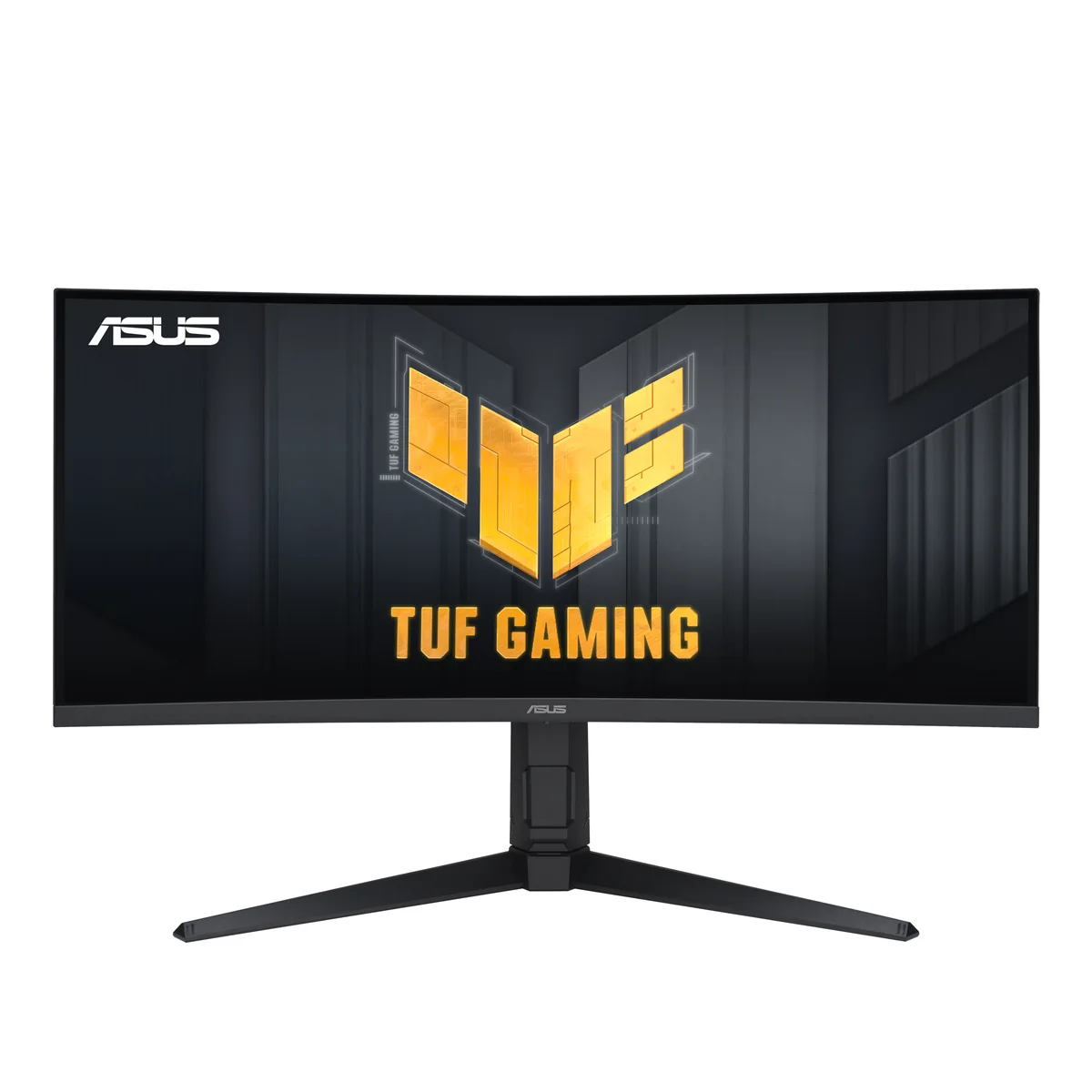
180Hz alternative ASUS TUF VG34VQL3A 34-inch curved ultrawide monitor on its stand

ASUS TUF VG34VQL3A

Choose this when DisplayPort refresh is the priority: ASUS rates it up to 180Hz over DisplayPort, with a VA panel. It does not include KVM or USB-C, so keep a separate host switch and laptop charger in the plan.

ASUS TUF VG34VQL3A on Amazon
165Hz QD-OLED alternative Alienware AW3423DWF 34-inch curved QD-OLED monitor on its stand

Alienware AW3423DWF

Best for: a 34-inch 21:9 QD-OLED display with up to 165Hz over DisplayPort.

Tradeoff: Dell lists up to 100Hz over HDMI, and the ASUS alternative reaches 180Hz over DisplayPort.

Dell's listed resolution is 3440×1440. This alternative suits a gaming setup where QD-OLED matters more than the ASUS's higher DisplayPort refresh maximum.

Alienware AW3423DWF on Amazon

What neither monitor fixes

Neither screen makes a game’s interface automatically fit its resolution. Four 1080p regions are available on the M32U’s pixel grid, but menus, window borders, and UI scale reduce usable room. The LG’s extra width helps one view, but a game may still place important HUD elements poorly at 21:9.

KVM also does not guarantee a one-cable desk. The M32U’s 18W USB-C output is below what many laptops require, and either monitor needs the right video and USB paths connected to both hosts. Decide from your actual cables, charging needs, and client layout.

What are you planning?

Example screen shown. Enter your screen details below to use your own.

Choose a matching screen shape if your exact model is not listed.

1. Simulator mode
2. Pick your monitor
Enter my screen and minimum window size

Enter the native resolution and scaling from your display settings. Defaults are examples; your screen is not detected automatically.

Optional: enter a window size you have tried in the real client, including borders. Leave either minimum at 0 for no limit. Logical pixels = native pixels ÷ desktop scaling.

MMOSetup is free and has no ads. If you buy through our Amazon links, you pay the same price and we earn a small cut, which keeps the guides coming. As an Amazon Associate we earn from qualifying purchases.

LG UltraWide 34WQ73A-B layout schematicStylized OSRS multi-client workspace at 3440 by 1440 pixels.RuneLite 11146×1400 nativeRuneLite 21147×1400 nativeWiki / reference1147×1400 native28-slot inventory
  • RuneLite 1 1146×1400 native pixels · 1146×1400 logical
  • RuneLite 2 1147×1400 native pixels · 1147×1400 logical
  • Wiki / reference 1147×1400 native pixels · 1147×1400 logical
Compare with my current screen

Current screen: 853×1400 logical pixels (no minimum entered). Selected screen: 1146×1400 logical pixels (no minimum entered). Change in the smallest game region: 293 pixels wide, 0 pixels high. Workspace rectangles include window borders and title bars; this does not measure readable game content.

Enter your minimum window dimensions to check this layout.

The same arrangement and reserved bottom height are used on both screens. Selected-screen scaling is set beside the preview; current scaling is entered in the screen form. Diagonal affects panel-distance estimates, not available pixels.

Resolution3440×1440
Pixel index+34.375% vs 2560×1440
Panel distance6.42 in straight line
Logical window size1146×1400 at 100%
What this preview does and does not model
  • UI scale is illustrative (0.75×); it is not an exact RuneLite plugin setting.
  • Geometry uses 3440×1440 native pixels with 40px reserved for the taskbar.
  • panel geometry distance is a straight-line screen-coordinate estimate on a curved-panel approximation, not mouse travel, eye movement, or an ergonomic result.
  • Window borders, client chrome, and minimum usable client sizes are not modeled.
  • GPU UI Scaling choice is included in the checklist; this schematic illustrates texture treatment only; it is not an actual GPU or RuneLite shader.
  • LCD has no OLED pixel-wear mechanism; image retention is not impossible in every condition.
Apply this layout on Windows

Use the Microsoft FancyZones instructions alongside this plan. On other systems, use your window manager and the copied coordinates.

On Windows: Settings > System > Display. Select the intended monitor, set its native resolution and 100% scale.
In PowerToys FancyZones, open the layout editor on that monitor. Create a custom Canvas layout and use the coordinates below as a placement reference. Native coordinates divided by 1.00 give approximate logical coordinates; confirm the editor’s units. Keep 40px native height clear at the bottom.
Hold Shift while dragging a window into a zone. Check borders, taskbar position and client text; adjust zones in the editor. This tool does not install or overwrite any desktop configuration.

1. Use two_wiki tiling and confirm each client stays inside its native pixel rectangle.
2. Set desktop scaling to 100% and inspect text in every client.
3. Keep the wiki or reference pane in the spare column when selected.

Window plan (native pixel coordinates):
RuneLite 1: x=0, y=0, 1146×1400 native pixels; 1146×1400 logical pixels
RuneLite 2: x=1146, y=0, 1147×1400 native pixels; 1147×1400 logical pixels
Wiki / reference: x=2293, y=0, 1147×1400 native pixels; 1147×1400 logical pixels

100% desktop scaling; 40px reserved height. Window borders and client minimum sizes are not modeled.
Did this help you plan or choose?

Feedback uses the site’s analytics consent settings.

Questions about the M32U and LG 34WQ73A-B

Are both monitors IPS displays with KVM and USB-C?

Yes. GIGABYTE lists the M32U as SS IPS with KVM and USB-C; LG lists the 34WQ73A-B as IPS with built-in KVM and USB-C. Their resolution, refresh rate, curve, and USB-C power delivery differ.

Can the M32U show four 1080p client windows?

Its 3840×2160 pixel grid divides into four 1920×1080 regions. Window borders, display scaling, and each game’s interface reduce the usable area, so check the layout with your actual clients.

How much power does the LG 34WQ73A-B provide over USB-C?

LG specifies USB-C power delivery up to 90W and lists 3440×1440 at 60Hz over USB-C. Check the laptop’s requirements before relying on a single cable.

What is the M32U USB-C power output?

GIGABYTE’s manual lists USB-C modes up to 18W and recommends another power source for devices needing more. The M32U still provides USB-C connectivity and KVM, but its power output is far below the LG’s 90W.

Is the ASUS VG34VQL3A a 180Hz alternative?

ASUS rates the VA panel at up to 180Hz over DisplayPort, while HDMI supports up to 100Hz. The monitor does not list KVM or USB-C, so those desk features require separate hardware or cables.

Sources and method

Published specifications and layout arithmetic

Panel type, resolution, refresh, KVM, USB-C power, and curvature are taken from the manufacturers’ product specifications or manuals. The 2×2 comparison is pixel arithmetic; it does not predict game performance or guarantee that every client interface fits.

Source pagesGIGABYTE M32U specificationsGIGABYTE M32U user manualLG 34WQ73A-B specificationsLG 34WQ73A-B full specifications, including refresh and curveASUS TUF VG34VQL3A technical specificationsDell AW3423DWF specificationsRTINGS GIGABYTE M32U review