34-inch ultrawide monitors · static MMO HUDs

Alienware AW3423DWF vs ASUS TUF VG34VQL3A: 34" QD-OLED vs 34" Curved VA for MMOs

QD-OLED black levels and 165Hz DisplayPort meet a 180Hz VA LCD that avoids OLED pixel wear for long stretches of static interface.

The short answer

Choose the Alienware for QD-OLED contrast in dark rooms and accept OLED care for static HUDs. Choose the ASUS for its 180Hz VA LCD if fixed MMO bars and office windows stay on screen for hours. LCD avoids the OLED pixel-wear mechanism, but no monitor can promise immunity to every kind of image retention.

How this was assessedManufacturer display specifications, Dell OLED-care guidance, and published display review findings. Panel type is not a promise about how a particular game or HUD will look.
SourcesDell and ASUS specifications, OLED maintenance guidance, and RTINGS review
Page freshness

Dark-room QD-OLED or a static-HUD VA LCD

Both are 34-inch 3440×1440 ultrawides. The choice shifts with contrast, refresh rate, and how long fixed interface elements remain visible.

As an Amazon Associate, MMOSetup earns from qualifying purchases.

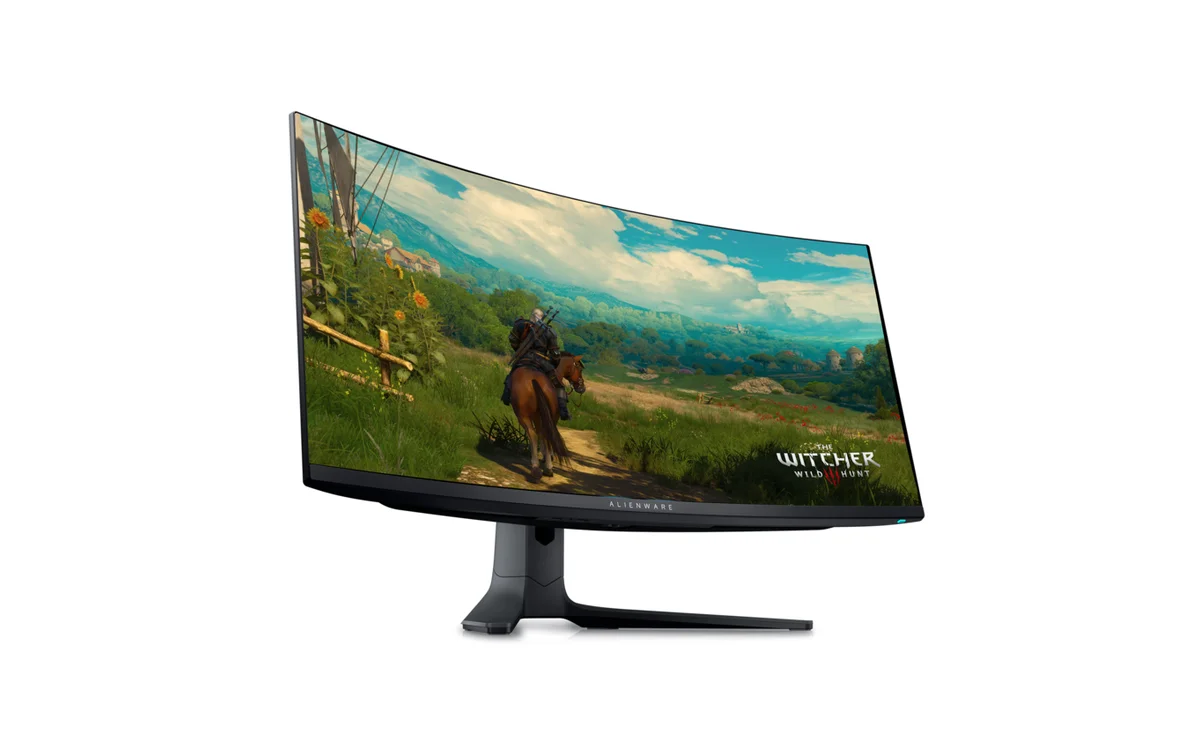
Alienware AW3423DWF 34-inch curved QD-OLED monitor on its stand
QD-OLED for active WoW and FFXIV raiding

Alienware AW3423DWF

Best for: WoW or FFXIV raids in a dim room, when QD-OLED black levels matter more than keeping fixed HUD elements on screen for long stretches.

Tradeoff: static HUDs and desktop elements can contribute to OLED image retention over time. Dell documents Pixel Refresh guidance; maintenance does not remove all risk.

Dell specifies a 1800R QD-OLED panel at 3440×1440, with up to 165Hz over DisplayPort and 100Hz over HDMI.

Alienware AW3423DWF
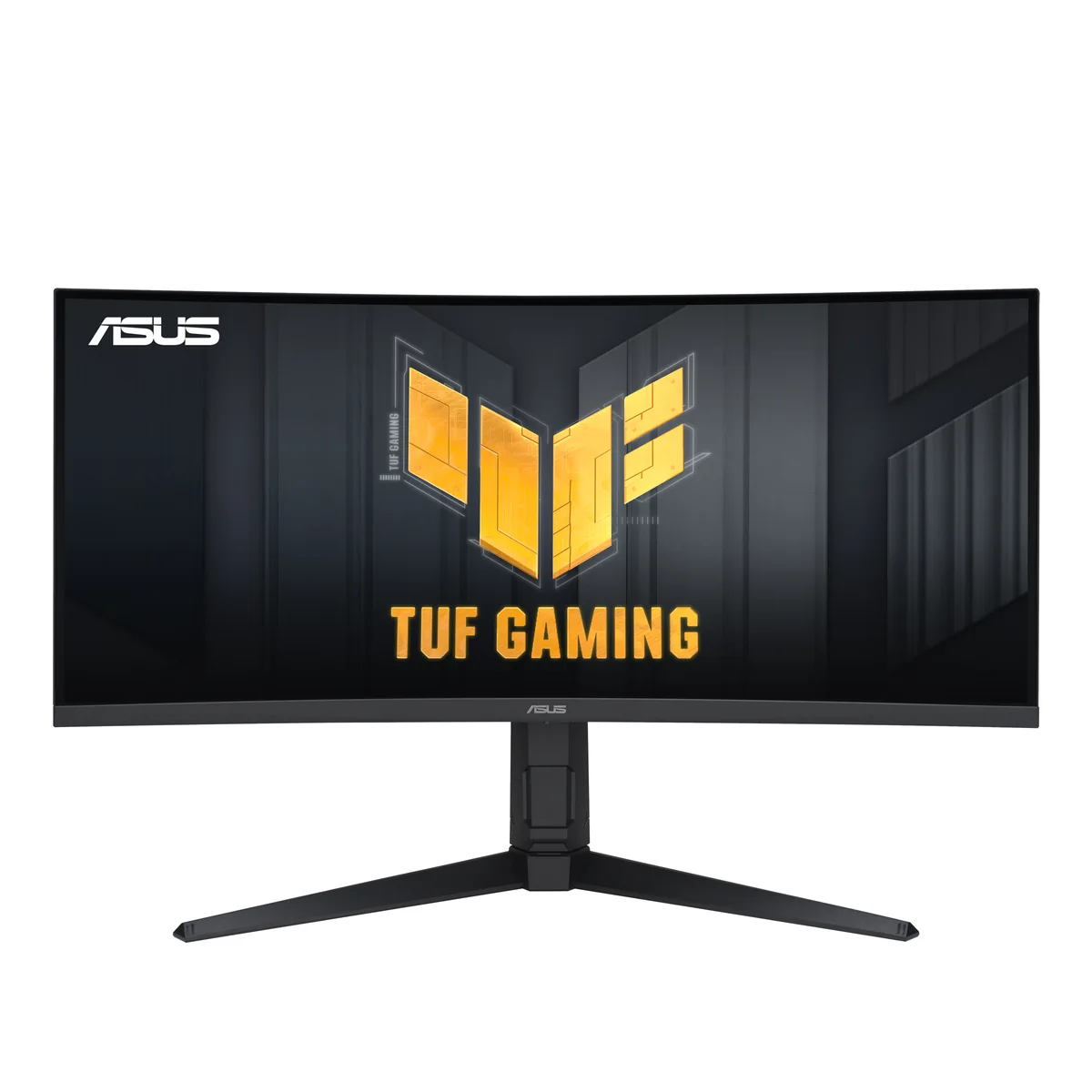
ASUS TUF VG34VQL3A 34-inch curved VA ultrawide monitor on its stand
VA LCD for static OSRS multi-boxing

ASUS TUF VG34VQL3A

Best for: OSRS RuneLite multi-boxing when client windows and interface panels stay in fixed positions for long stretches and you prefer an LCD.

Tradeoff: VA LCD does not match QD-OLED’s per-pixel black control. ASUS lists no KVM or USB-C, and its 180Hz maximum is over DisplayPort; HDMI tops out at 100Hz.

The ASUS is a 1500R curved VA display at 3440×1440. LCD does not have OLED pixels that wear under static content, but that is not an absolute no-image-retention guarantee.

ASUS TUF Gaming VG34VQL3A

IPS/KVM alternative: LG UltraWide 34WQ73A-B

Panel behavior and connection set the tradeoff

Refresh maxima depend on the input connection. GtG response times are manufacturer ratings, not independent measurements.

Alienware AW3423DWF vs ASUS TUF VG34VQL3A, with LG 34WQ73A-B IPS/KVM alternative
FeatureAW3423DWFVG34VQL3ALG 34WQ73A-B (IPS/KVM alternative)Alienware vs ASUS difference
Panel typeQD-OLED with per-pixel light controlVA LCDCurved IPS LCD with built-in KVM and USB-CAlienware for OLED blacks
Maximum refresh165Hz DisplayPort; 100Hz HDMI180Hz DisplayPort; 100Hz HDMI60HzASUS over DisplayPort
Manufacturer-listed GtG response time0.1 ms1 ms5 ms (GtG at Faster)Alienware has the lower listed figure
Curve1800R1500R3800RASUS has tighter curve
Typical contrast and HDR1,000,000:1 typical; DisplayHDR True Black 4004,000:1 typical; DisplayHDR 400 and HDR101,000:1 typical; HDR10Alienware on listed contrast
Static-content concernOLED pixel wear and image retention remain possibleDoes not use OLED pixels; image retention is not impossible in every conditionDoes not use OLED pixels; image retention remains possibleASUS for static interfaces
Amazon product linksAlienware AW3423DWFASUS TUF VG34VQL3ALG UltraWide 34WQ73A-BLinks open each product page on Amazon.

Black level is the OLED advantage; static hours favor LCD

QD-OLED controls light at each pixel

The AW3423DWF uses a quantum-dot OLED panel, so black portions of a dark map can be unlit rather than backlit through an LCD layer. Dell specifies a 1800R curve and 165Hz over DisplayPort. For night raids, dark dungeons, and bright spell effects, that contrast is the reason to choose the Alienware.

RTINGS’ review notes the QD-OLED subpixel layout can leave colored fringing around fine text and that ambient light can affect perceived black levels. Those are review observations, not a claim about every desk or viewing condition. If work documents and small text occupy the screen for much of the day, include them in the decision alongside the game image.

The ASUS is a VA LCD, not an IPS panel

ASUS specifies a VA LCD, 1500R curve, 3440×1440 resolution, and 180Hz maximum refresh over DisplayPort. Over DisplayPort, the ASUS runs 15 Hz higher than the Alienware (180Hz vs 165Hz), and its curve is 1500R vs the Alienware’s 1800R. HDMI is limited to 100Hz on both models.

Because the ASUS is LCD, it does not use OLED pixels that wear at different rates under static content. That can suit a fixed minimap, action bars, raid frames, taskbar, or office windows, including RuneLite layouts in OSRS. It avoids OLED pixel wear, but no specification proves that image retention can never occur.

Care is part of the Alienware choice

Dell documents Pixel Refresh guidance for the AW3423DWF and provides OLED care settings. A static HUD does not automatically make the display unsuitable, but a long daily block of fixed interface and desktop content changes the tradeoff. Keep the monitor’s maintenance prompts enabled and use available game or addon options to hide elements that do not need to stay fixed.

The ASUS trades per-pixel black control for an LCD panel and higher DisplayPort refresh. It also lacks KVM and USB-C, so a work laptop may need its own power adapter and a separate keyboard-and-mouse switch. For a KVM-first ultrawide, see the M32U and LG monitor comparison.

Where each monitor fits

Dark-room raids and media

Alienware AW3423DWF

Choose it when the PC is mainly for gaming, the room is dim, and the display’s black level matters more than a static desktop. Follow Dell’s Pixel Refresh guidance and keep the distinction between OLED maintenance and a guarantee in mind. The Path of Exile hub links the relevant ultrawide setup guide.

Workday plus MMO HUDs

ASUS TUF VG34VQL3A

Choose the VA LCD if taskbars, spreadsheets, or fixed MMO elements stay on screen through a workday and the 180Hz DisplayPort option fits your PC. It avoids OLED pixel wear, but does not include KVM or USB-C. See the WoW setup hub and FFXIV hub for interface-layout context.

What neither monitor fixes

Neither panel guarantees a clean 21:9 HUD layout. The client and add-ons decide where maps, cooldowns, chat, and party frames land. Check your game’s supported aspect ratios and interface settings before changing screens.

The ASUS avoids OLED pixel wear but gives up per-pixel black control and has no desk KVM. The Alienware offers higher contrast but needs OLED care when static content dominates. Neither choice removes the need to match the connection to the refresh rate you expect.

What are you planning?

Example screen shown. Enter your screen details below to use your own.

Choose a matching screen shape if your exact model is not listed.

1. Simulator mode
2. Pick your monitor
Enter my screen and minimum window size

Enter the native resolution and scaling from your display settings. Defaults are examples; your screen is not detected automatically.

Optional: enter a window size you have tried in the real client, including borders. Leave either minimum at 0 for no limit. Logical pixels = native pixels ÷ desktop scaling.

MMOSetup is free and has no ads. If you buy through our Amazon links, you pay the same price and we earn a small cut, which keeps the guides coming. As an Amazon Associate we earn from qualifying purchases.

Alienware AW3423DWF layout schematicStylized WoW / FFXIV raid HUD workspace at 3440 by 1440 pixels.Raid HUD3440×1400 nativeRaid framesPlayer / targetCast barChat and utility wings remain peripheralhealer HUD center zone
  • Raid HUD schematic 3440×1400 native pixels · 3440×1400 logical
Compare with my current screen

Current screen: 2560×1400 logical pixels (no minimum entered). Selected screen: 3440×1400 logical pixels (no minimum entered). Change in the smallest game region: 880 pixels wide, 0 pixels high. Workspace rectangles include window borders and title bars; this does not measure readable game content.

Enter your minimum window dimensions to check this layout.

The same arrangement and reserved bottom height are used on both screens. Selected-screen scaling is set beside the preview; current scaling is entered in the screen form. Diagonal affects panel-distance estimates, not available pixels.

Resolution3440×1440
Pixel index+34.375% vs 2560×1440
Panel distancen/a
Logical window sizen/a
What this preview does and does not model
  • UI scale is illustrative (0.75×); it is not an exact RuneLite plugin setting.
  • Geometry uses 3440×1440 native pixels with 40px reserved for the taskbar.
  • panel geometry distance is a straight-line screen-coordinate estimate on a curved-panel approximation, not mouse travel, eye movement, or an ergonomic result.
  • Window borders, client chrome, and minimum usable client sizes are not modeled.
  • GPU UI Scaling choice is included in the checklist; this schematic illustrates texture treatment only; it is not an actual GPU or RuneLite shader.
  • Use the manufacturer care features and Pixel Refresh; Dell coverage does not make OLED burn-in impossible.
  • WoW: Forever ultrawide support is unconfirmed; test the resolution in the client first.
Apply this layout on Windows

Use the Microsoft FancyZones instructions alongside this plan. On other systems, use your window manager and the copied coordinates.

On Windows: Settings > System > Display. Select the intended monitor, set its native resolution and 100% scale.
In PowerToys FancyZones, open the layout editor on that monitor. Create a custom Canvas layout and use the coordinates below as a placement reference. Native coordinates divided by 1.00 give approximate logical coordinates; confirm the editor’s units. Keep 40px native height clear at the bottom.
Hold Shift while dragging a window into a zone. Check borders, taskbar position and client text; adjust zones in the editor. This tool does not install or overwrite any desktop configuration.

1. Place Raid frames in the center combat zone using WoW Edit Mode or an FFXIV HUD Layout.
2. Keep cast bars and player frames together at 100% desktop scaling.
3. Test the resolution in the client before relying on the layout.

Window plan (native pixel coordinates):
Raid HUD schematic: x=0, y=0, 3440×1400 native pixels; 3440×1400 logical pixels

100% desktop scaling; 40px reserved height. Window borders and client minimum sizes are not modeled.
Did this help you plan or choose?

Feedback uses the site’s analytics consent settings.

Questions about the AW3423DWF and VG34VQL3A

Is the Alienware AW3423DWF safe to use with static World of Warcraft or OSRS interfaces?

The AW3423DWF can display static WoW or OSRS interfaces, but repeated static content can contribute to OLED pixel wear and image retention. Dell documents Pixel Refresh guidance and OLED-care settings; follow its prompts. If fixed HUDs stay visible for long stretches, the ASUS VA LCD avoids OLED pixel wear, though image retention remains possible on LCDs.

What is the difference between 1800R on the Alienware AW3423DWF and 1500R on the ASUS VG34VQL3A?

Dell lists the AW3423DWF at 1800R and ASUS lists the VG34VQL3A at 1500R. The smaller radius number describes the tighter curve, so the ASUS curves more sharply. That specification alone does not say which will suit your seating distance; consider how close you sit and whether the stronger curve feels right.

Which 34-inch ultrawide has the sharpest text for reading MMO chat and wikis?

RTINGS notes colored fringing around fine text on the AW3423DWF's QD-OLED panel. That review observation does not establish a universal text winner across all setups. The ASUS and LG are LCD alternatives; compare MMO chat and wiki text at your normal scaling and viewing distance, since those settings affect what you see.

Sources and method

Panel claims tied to manufacturer specifications

Resolution, panel type, curve, and refresh rates come from Dell, ASUS, and LG. Dell’s support page describes OLED image-retention and Pixel Refresh guidance. RTINGS’ observations are attributed as review findings rather than treated as universal outcomes.

Source pagesDell AW3423DWF specificationsDell OLED image-retention and Pixel Refresh guidanceASUS TUF VG34VQL3A specificationsLG 34WQ73A-B specificationsRTINGS Alienware AW3423DWF review