RuneScape setup guide

RuneScape setup: readable interface first, action bars by job

Use your monitor’s native resolution, then set Interface Scaling until text and targets are readable. Arrange action bars by job, and add an MMO mouse only if keyboard reach remains a problem.

MMOSetup / Layout notes

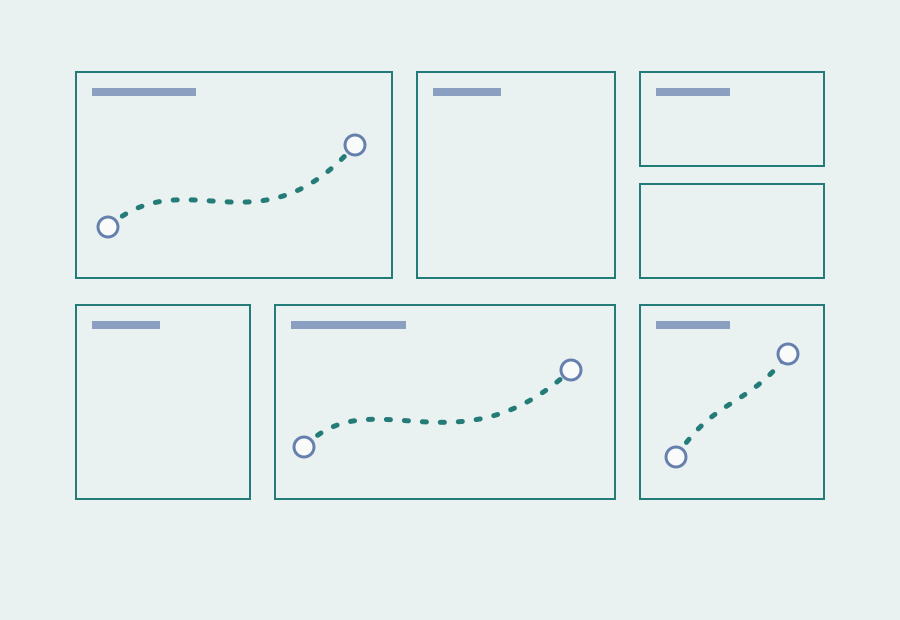
Give the game the center; give panels a home

Game viewKeep the center clear
Map
Inventory / secondary panels
Chat / reference
Action bars / combat information
Conceptual panel zones, not a game screenshot or fixed dimensions. Tune the interface around readable text and the panels you actually use.

Baseline setup

Reviewed

Start with a readable, repeatable layout.

Save a clean layout first. Change display scale and panel positions one at a time so you can keep the settings that make the current activity easier to read.

  • Use the current client and save a clean layout before major changes.
  • Keep frequently read information near the play field.
  • Give each physical control one stable job.
  • Test the busiest part of the session before buying more gear.
Keep the game view clear and place secondary panels where you can scan them without losing the action. If text or controls are hard to reach, solve that before adding hardware.

Single monitor

Center the client and keep the interface inside a comfortable reading area.

Ultrawide or 4K

Separate interface scale from render scale before arranging the full canvas.

MMO mouse

Move stable action-bar jobs to the grid, not a different list of ability names for every activity.

Keyboard-first

Keep it when the action map is already reliable and chat or menu work dominates the session.

Work through interface and display first. Add input hardware only after the layout is readable and the remaining reach problem is clear.

01 / Interface

Interface

Start with the refreshed 2026 default layout. Keep backpack, chat, minimap, action bars, and combat information in stable zones before unlocking every panel.

02 / Inputs

Inputs

Build one keyboard action bar, then mirror its stable positions to a mouse grid if keyboard reach remains the bottleneck.

03 / Display

Display

Match the monitor's resolution, set Interface Scaling for readability, and change Game Rendering Scaling only when performance needs it.

04 / Audio

Audio

Keep game cues, voice chat, and background audio separated enough that one volume change does not bury every source.

05 / Comfort

Comfort

Use a client size, monitor position, and input map you can return to. A repeatable setup is more useful than a dense one.

Guides

Each guide covers one part of the setup and links back here.

Start with these RuneScape walkthroughs, or browse all MMO setup guides. Open a focused guide when the remaining question is scaling or mouse reach.

Optional gear

Keep the mouse you have unless reach is still a problem.

Choosing a monitor? Set the screen up with the RuneScape 3 ultrawide and UI scaling guide before buying around an interface issue.

As an Amazon Associate we earn from qualifying purchases.

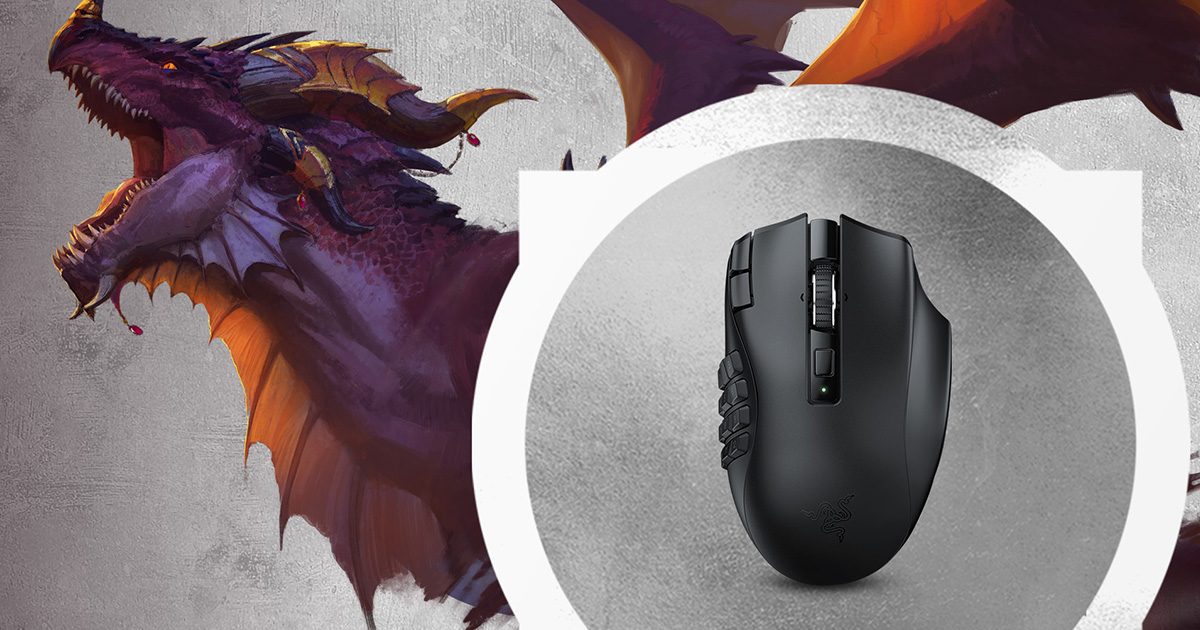
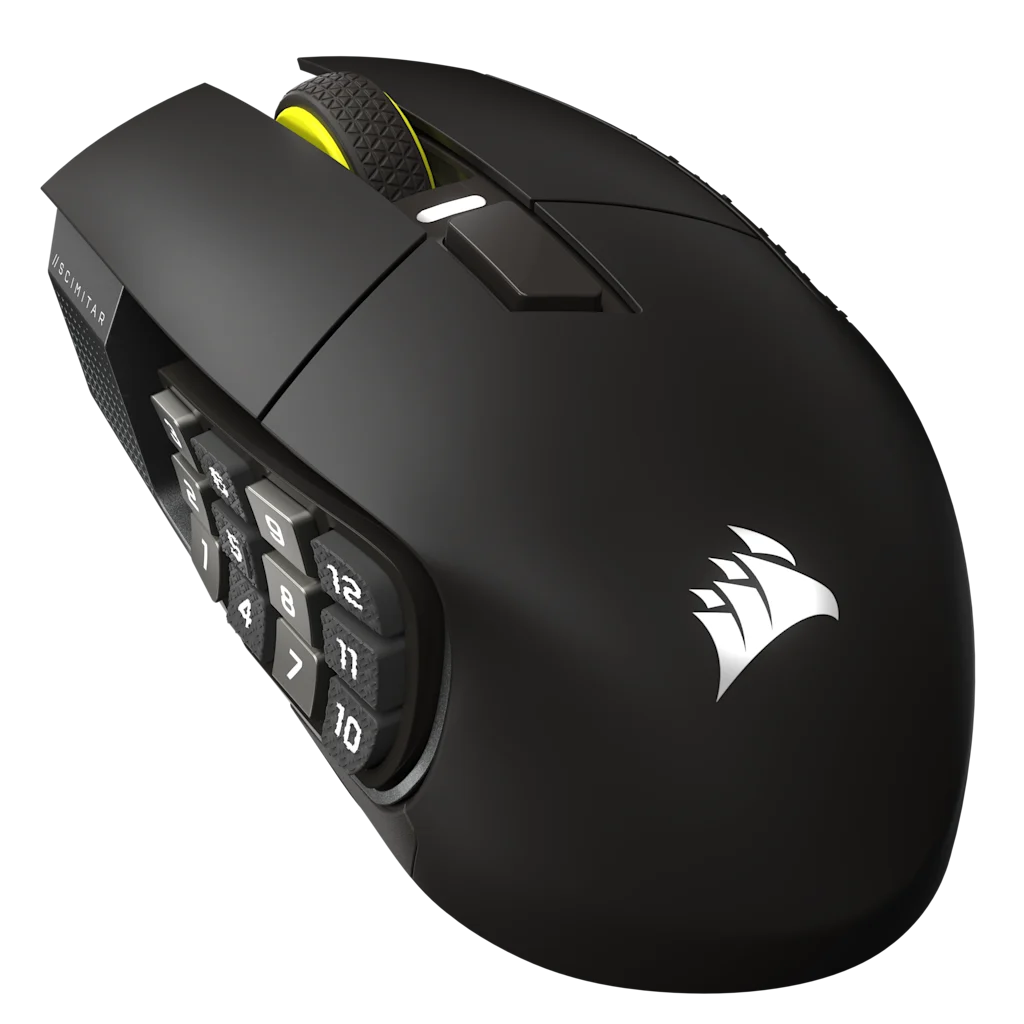
These two grids suit different thumb reaches. Try a small, stable key map before filling every button.

Corsair Scimitar Elite Wireless SE Gunmetal MMO mouse

Corsair Scimitar Elite Wireless SE

Keep: If you want a 12-button grid and need to move its side panel to match your thumb reach.

Skip: If you want a smaller mouse or do not want to adjust to a side-button grid.

Check exact listing
Razer Naga V2 HyperSpeed wireless MMO mouse

Razer Naga V2 HyperSpeed

Keep: If you prefer a fixed 12-button grid for stable action-bar jobs.

Skip: If you need to move the side panel or the shape does not suit your hand.

Check exact listing

For a starting button map, follow the RuneScape 3 MMO mouse and keybind setup before assigning the full grid.

Compare

Compare the two shortlisted mouse layouts.

Choose a fixed grid or an adjustable thumb panel after the interface and key map work.

Sources and limits

Interface baseline before button grids.

This hub covers broad interface and action-bar guidance. Ultrawide scaling and mouse mapping live in their guides.

Jagex interface and action-bar guidance informed this page. No hands-on hardware test was run on this hub.

SourcesJagex recommended specificationsRuneScape community

FAQ

RuneScape setup questions

Start with the screen and action map; add gear only to solve a remaining problem.

What should I set first on an ultrawide or 4K monitor?

Use the monitor’s native resolution, then adjust Interface Scaling until text and targets are readable. Change Game Rendering Scaling only if performance needs it. See the RuneScape 3 ultrawide and UI scaling guide for the full sequence.

How should I organize RuneScape action bars?

Group binds by job: frequent actions, defensives, movement, prayers, and utility. Keep those positions consistent across bars, and start with the keyboard unless reach is still a problem.

Do I need an MMO mouse for RuneScape?

No. Keep your current mouse if the keyboard map is comfortable and reliable. Consider a 12-button grid only if an important action remains awkward to reach, then bind the grid to ordinary keys before mapping abilities in-game.

Where should I start with a RuneScape setup?

Match the monitor’s native resolution, make Interface Scaling readable, and organize action bars by job. Add an MMO mouse only if an important key remains awkward to reach.