WoW / Handheld setup

WoW on Steam Deck or ROG Ally: grind and delves, not default Mythic

A handheld is worth it for WoW chores and delves; treat Mythic raid as an optional stretch, not the buy reason. Dailies, open-world tasks, delves, and LFR are the natural fit. Casual group content can work after you have a layout you trust. If Mythic progression is the main reason you would buy one, keep your desk setup primary.

ScopeRetail handheld path
Best fitGrind, delves, and LFR
Reviewed

Amazon pick

Windows handheld pick for WoW

One Amazon listing only. Steam Deck stays on steamdeck.com.

As an Amazon Associate we earn from qualifying purchases.

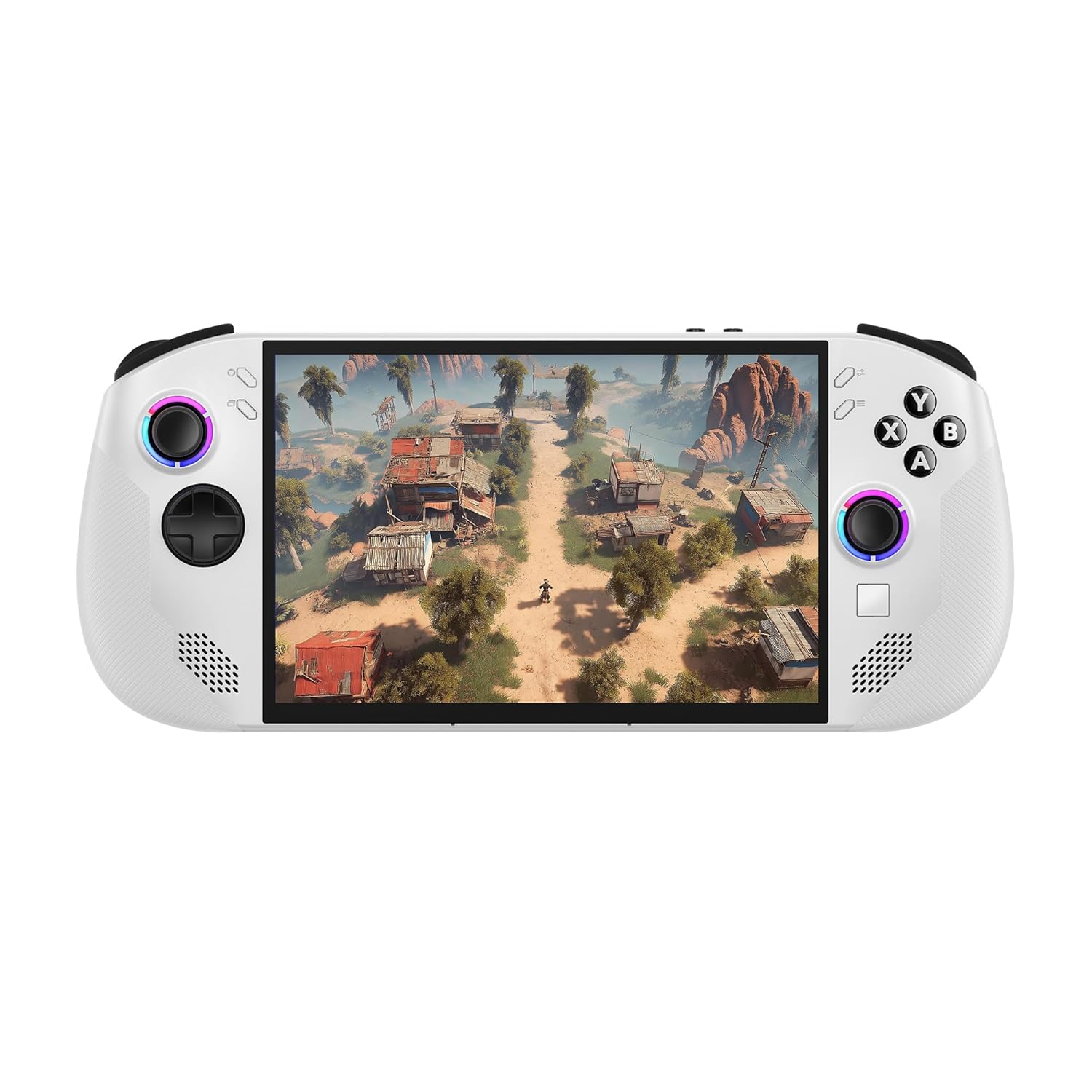
Lenovo Legion Go S handheld gaming PC in Glacier White
Windows handheld

Lenovo Legion Go S (16GB / 512GB)

Only Amazon CTA on this page

Best for: WoW chores and delves on a Windows handheld with a normal Battle.net install.

Use this when you want the simpler Windows path and an Amazon-sold, Amazon-fulfilled new unit. Skip it if Mythic raid progression is your only buy reason, or if you already prefer SteamOS and will buy a Deck from Valve.

Exact listing: Glacier White, 16GB memory, 512GB storage. ASIN B0DTBN55K9. Confirm the model and configuration before ordering; price and stock change.

Check the Legion Go S on Amazon

Steam Deck stays on steamdeck.com — no Amazon Deck link here. ROG Ally and other Windows peers are editorial only on this page.

Where it fits

Pick the job before the device.

A handheld can cover a useful slice of WoW. It does not need to replace your desk to earn its place.

WoW jobHandheld fitKeep in mind
Dailies and world tasksGood fitShort routes and repeatable tasks suit handheld sessions. Use the mouse fallback for text entry, map precision, and menus that feel cramped.
DelvesGood fit after a control checkTry a familiar, low-pressure delve first. Confirm movement, target selection, interrupts, and defensive actions before making the layout your default.
Looking for RaidPossibleLFR is a reasonable place to try a settled layout, but party frames and encounter mechanics can still be easier to read on a larger screen.
Mythic+ConditionalCasual keys may be comfortable once your binds and UI are familiar. Higher-pressure play leaves less room to troubleshoot a missed target, prompt, or button.
Mythic raidNot the default buy reasonKeep a desk setup as your main plan if progression raiding is the goal. A handheld can be a backup or convenience screen, not a promised replacement.

These are fit recommendations, not test claims; your class, interface, network, and targeting needs can change the fit. If you already have a PC, test controller play on it first with the WoW controller setup guide; that guide covers a desk pad and does not walk through handheld installation.

Steam Deck

Choose it if SteamOS feels familiar.

WoW is a Windows game, so a Steam Deck path means working through SteamOS and Proton rather than launching the standard Windows Battle.net install. Community setup steps can change as the game, launcher, or compatibility layer changes. Expect more setup and troubleshooting than on a Windows handheld, and recheck instructions after meaningful updates.

Steam Input gives you a useful starting point without rebuilding the whole interface: map a trackpad to pointer movement, use a trigger as a click, and keep the regular gamepad controls available for movement.

If you want a Deck, compare current models through Valve's official Steam Deck page. This guide does not link Steam Deck listings on Amazon.

Windows handheld

Choose it if you want the familiar Battle.net route.

A Windows handheld follows the usual desktop path: install Battle.net, sign in, install WoW, and pair or configure your controls. Small screens, on-screen keyboards, and Windows maintenance still take adjustment.

The Lenovo Legion Go S 16GB/512GB Windows model is the only Amazon handheld listing this guide recommends. Its exact ASIN is B0DTBN55K9. Check the model and configuration on the listing before ordering; price and stock can change.

See the Legion Go S pick card

The ROG Ally and other Windows handhelds are peers in the operating-system discussion here; this page makes no Amazon recommendation for them.

Controls

Start with a pointer, then decide if you need ConsolePort.

Steam Input: pointer first

Use a trackpad as a mouse when you need to click a launcher, move through a menu, or target something precisely. This keeps the setup small and gives you a familiar fallback for interface-heavy tasks. It can be enough if your WoW routine is mostly movement, a few action binds, and occasional pointer use.

Native gamepad: try the built-in path

WoW's native gamepad support may cover the basics you want for movement and actions. Bind a small set of frequent abilities, then test them where mistakes are cheap. You do not need an add-on just because the device has gamepad controls.

ConsolePort: add an interface layer

Choose ConsolePort if you want controller-focused menus, action rings, or a more complete gamepad layout. Add one layer at a time and keep a pointer available while you learn it. If setup becomes a project of its own, return to the simpler layout and keep playing.

On Windows, start with a regular gamepad; on Deck, Steam Input adds trackpad and desktop controls. Keep a docked keyboard and mouse nearby for patching, chat, and detailed interface work.

Midnight / Sep 24, 2026

Treat add-on permission and add-on behavior as separate questions.

Ion saying add-ons are allowed does not promise that every ConsolePort feature works after every patch. An allowed add-on can still need an update, lose a hook, or behave differently in one part of the interface. Check the current ConsolePort release and test your own layout before taking it into content you care about.

Keep your desk keybinds intact. Make a separate handheld profile where the game or add-on supports one, and write down any changes you need to restore. Leave a mouse and keyboard within reach for login, chat, UI fixes, and any action that feels awkward on a small screen. The handheld setup should be easy to leave and easy to return to.

First session

Build the layout docked, then take one clean run.

Keep the first test short enough that you can tell which part needs work.

  1. Dock the handheld. Connect a keyboard and mouse, open WoW, and confirm the game and launcher behave before adding controller changes. On the Deck, complete the SteamOS and Proton setup you chose and make sure you can sign in again after closing the launcher.
  2. Choose one control path. Try native gamepad support first. Add ConsolePort only if you know what gap you want it to fill. Set up a few core abilities and leave a pointer available for menus and targeting.
  3. Check the actions that matter. Confirm movement, target selection, an interrupt, a defensive, and a way to reach your bags or map. Do not spend the first session binding every spell; test the handful you rely on most.
  4. Run one familiar delve. Pay attention to missed inputs and awkward menus, not just whether the character moves. If one important action is hard to reach, change that before using the layout in a group.
  5. Undock after a clean delve. Use the same profile on the handheld controls and keep a keyboard and mouse fallback. Build ConsolePort docked with keyboard and mouse first; undock after one clean delve.
  6. Reclaim your desk profile. Before your next desk session, switch back to the saved keyboard and mouse bindings and check them in a safe area. Keep the two setups separate so a handheld experiment does not become a desk rebind.

When the display itself is the issue, use the WoW ultrawide UI guide for desk display notes; it is not a handheld setup guide. The broader WoW hub collects the site's game-specific setup advice. The Forever controller worksheet has a separate handheld verification gate; do not read that gate as confirmation that WoW Forever is supported on Deck.

When to skip

Do not buy one for handheld-only Mythic progression.

If your main goal is pushing Mythic raid progression, a small screen and handheld controls add friction to targeting, party frames, chat, and quick interface changes. Keep a desk PC with keyboard and mouse as your primary setup. A handheld can still cover chores while traveling around the house, but that is a separate convenience from replacing your raid station.

Also skip the purchase if you dislike managing a second operating system, launcher, or profile. A handheld is not automatically the easier WoW setup just because it is portable. Use the hardware you already own for a controller test first, then buy only if the routine solves a real problem for you.

FAQ

WoW handheld questions

Can you play World of Warcraft on Steam Deck?

It can be set up, but WoW on Steam Deck takes more SteamOS and Proton setup patience than installing Battle.net on Windows. Treat controller and add-on behavior as patch-dependent.

Is a ROG Ally easier for WoW than a Steam Deck?

A Windows handheld such as the ROG Ally follows the simpler Battle.net desktop-install path. Pick it for Windows comfort; this guide makes no FPS or battery guarantee.

What WoW content suits a handheld?

Dailies, world tasks, delves, and LFR are reasonable handheld jobs; casual groups and some Mythic+ can work if the controls and UI fit you. Mythic raid is not the default reason to buy one.

Should I use ConsolePort or Steam Input on Deck?

Steam Input's trackpad-to-mouse layout is the lower-commitment way to navigate with a pointer. Use ConsolePort when you want controller-oriented WoW menus, rings, or action bindings; test one delve and keep a keyboard and mouse fallback.

Is Steam Deck worth it for WoW?

A handheld is worth it for WoW chores and delves; treat Mythic raid as an optional stretch, not the buy reason. Choose Deck if you accept Proton setup work; choose Windows if you want the simpler Battle.net path.

What should I change for WoW Midnight handheld binds?

As of Sep 24, 2026, keep your desk bindings and mouse fallback. Ion saying add-ons are allowed does not guarantee every ConsolePort feature works; make a handheld profile, then test it in a delve before relying on it.

How do I test a ConsolePort layout before playing handheld?

Build ConsolePort docked with keyboard and mouse first; undock after one clean delve. Keep your desk profile intact so you can switch back without rebuilding it.