OSRS tablet keyboard setup: choose the input that fits the client.
Start touch-first on Android or iPadOS. Add a stylus, keyboard, or mouse only for a specific manual workflow. If the actual requirement is RuneLite, compare a Windows 2-in-1 or laptop instead of trying to turn a mobile client into a desktop client.
Confirm the keyboard is connected and can type outside OSRS.
02Test in the game
Check the exact shortcut or typing task you want on this client.
03Keep a fallback
If that action is unsupported, use the touch control rather than assuming desktop parity.
Successful Bluetooth or USB pairing does not turn OSRS Mobile into RuneLite.
Android / iPadOSMobile client first
Windows 2-in-1Desktop path possible
AutomationNot part of this guide
Touch is the clean starting point for OSRS Mobile. Add a Bluetooth keyboard when chat or navigation has a real text-entry job, but do not assume Android or iPadOS pairing creates desktop shortcuts. Choose a Windows 2-in-1 when RuneLite and desktop keybinds are why you are shopping. If the client ignores the shortcut or the keyboard makes touch targets harder to reach, drop the accessory and stay on touch.
Test chat entry, camera movement, and any shortcut you intend to use separately. A mouse connecting successfully does not prove that right-click menus or button bindings behave as they do on desktop.
OSRS tablet input choices
Input
Useful for
Boundary
Touch
Native mobile play, quick access, and a simple carry setup.
Reach, precision, and cramped layouts still need testing.
Stylus
Manual pointer precision or a more deliberate tap target.
Exact app behavior, palm rejection, grip, and screen protector effects vary; it is not a PvM guarantee.
Bluetooth keyboard
Text entry, navigation, and any documented or tested manual shortcut workflow.
Pairing at the OS level does not make mobile OSRS behave like RuneLite.
Mouse or touchpad
Pointer-led navigation on a supported tablet workflow.
Mobile app pointer behavior varies. Test right-click, camera movement, and scrolling on your exact device.
Windows 2-in-1
Desktop windows, keyboard/mouse input, and a possible RuneLite path.
It is heavier and more complex than a mobile tablet; verify Windows, hardware, and desktop-client requirements.
Android path
Pair the keyboard outside the game. Test OSRS next.
Google's Android guidance covers Bluetooth pairing and physical-keyboard settings. That establishes an input connection; it does not establish that every OSRS Mobile screen, shortcut, or text field will respond like a desktop client.
Pair the keyboard in Android settings.
Check the physical-keyboard layout and language settings.
Open OSRS and test text entry, navigation, and the specific manual action you care about.
Keep touch available as the fallback when the mobile UI does not respond as expected.
iPadOS path
Keep the iPad model and input method explicit.
Apple documents external keyboards and Full Keyboard Access on iPad. iPadOS 26 also changes how supported models handle Windowed Apps, side-by-side windows, and Slide Over. Confirm the exact iPad model before copying a multitasking or accessory workflow.
For split-screen reading, keep the game full width when reach matters. Use the OSRS split-screen guide for the windowing tradeoffs.
The same screen shape can hide a different software path. Windows 2-in-1 devices can run desktop clients if the exact operating system and hardware qualify.
Desktop client
Check RuneLite before the hardware.
RuneLite's official download page lists desktop operating systems, not Android or iPadOS mobile builds. Read the RuneLite tablet guide before treating Windows as a fit.
Detachable keyboard
Windows changes modes around the keyboard.
Microsoft documents tablet behavior around keyboard attachment and detachment. That convenience is separate from whether the display, thermals, battery, and input layout suit a long OSRS session.
Buying boundary
Do not compare it to a cheap Android tablet on price alone.
If desktop plugins, window management, or keyboard-first play are the reason for the purchase, compare the complete Windows setup with a laptop.
Use full-screen OSRS Mobile first and set a readable interface scale.
Test prayer, inventory, movement, and camera access at low stakes.
Only add a keyboard, stylus, or mouse for a specific manual action you can verify.
Return to touch or full screen when split panels or an accessory make reach less predictable.
Do not treat any device or accessory as a promise of better performance or safer play.
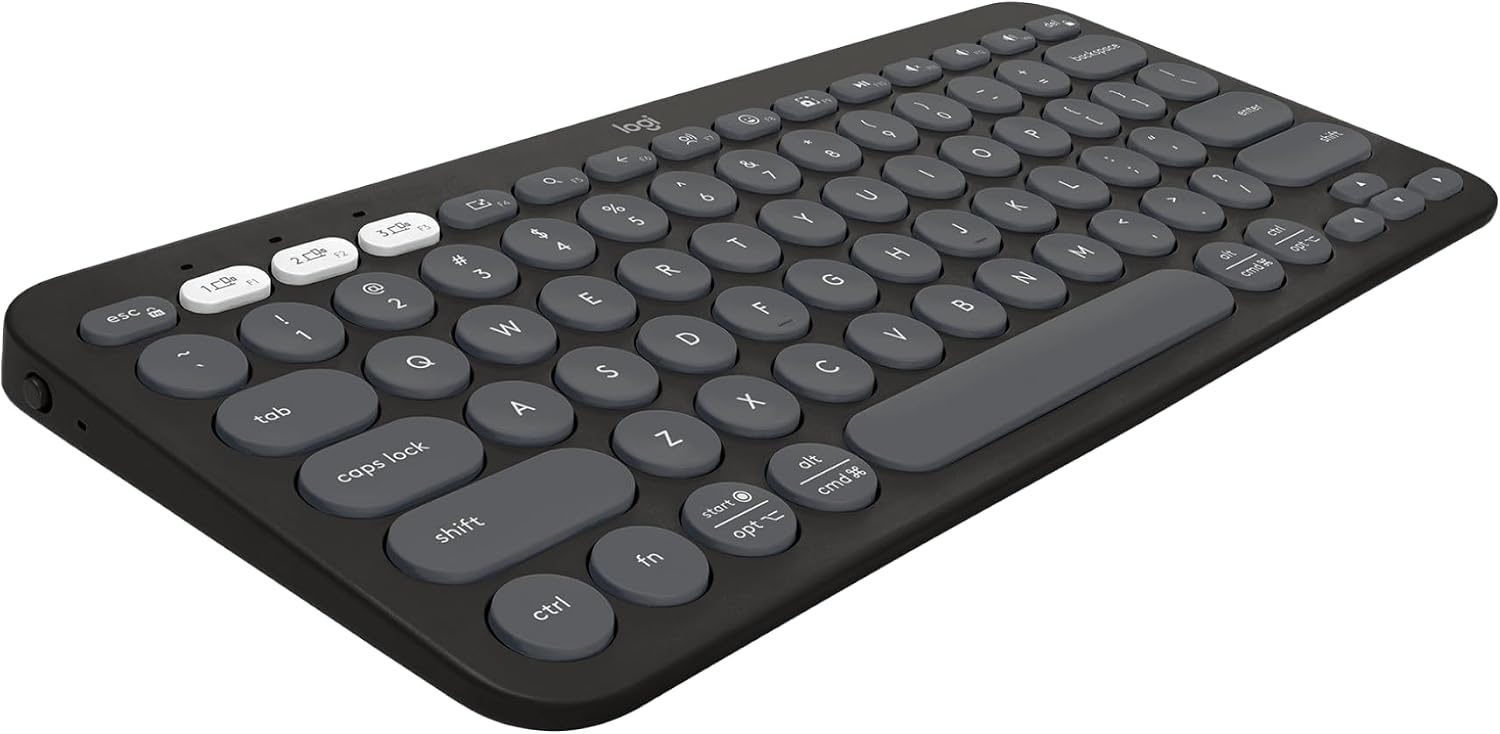
A compact keyboard is worth considering if you type enough chat to dislike the on-screen keyboard. Try one you already own first. Check text entry, closing the chat box, and returning to touch controls before paying for a dedicated accessory.
As an Amazon Associate we earn from qualifying purchases.
Budget / portable
Logitech Pebble Keys 2 K380s
A compact keyboard for chat. Bluetooth, three-device switching, and Logitech-documented support for Windows, iPadOS, and Android make it a reasonable manual-input baseline.
Exact U.S. listing checked Aug 3, 2026 · ASIN B0BT4DP7SC
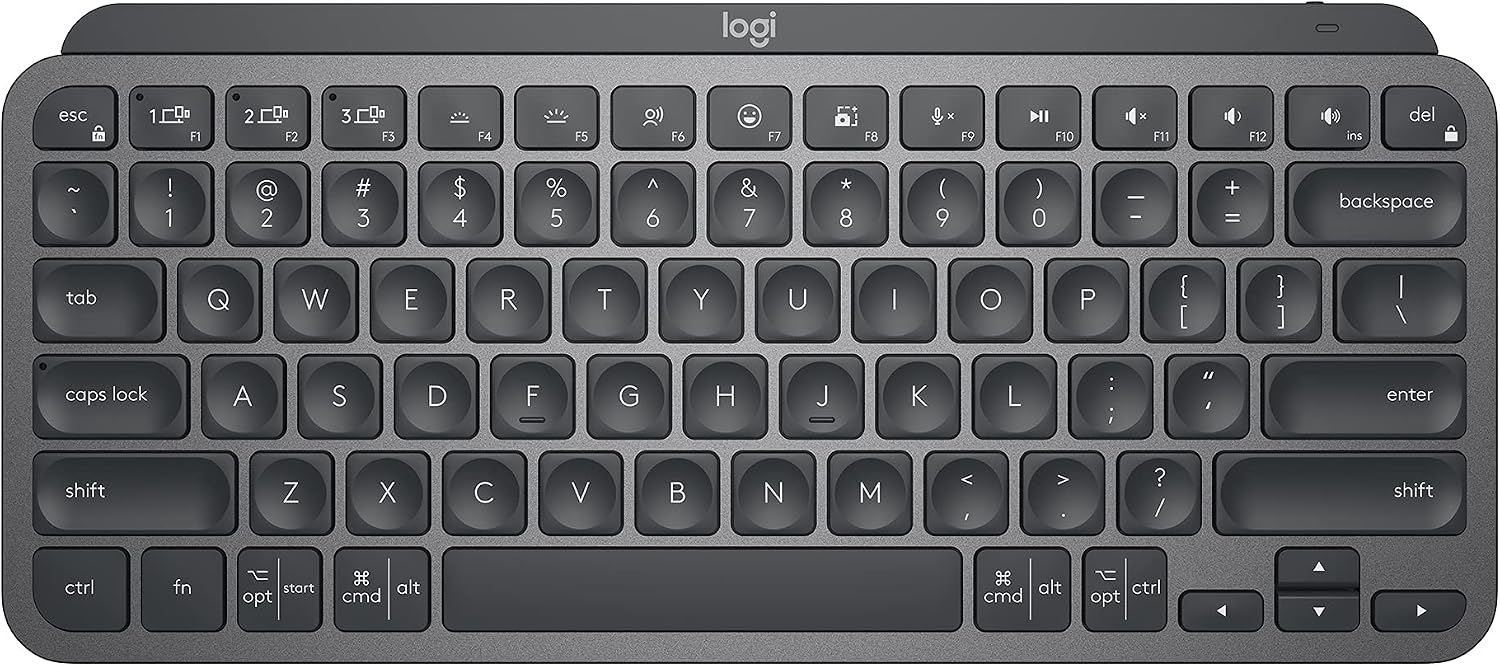
Consider it for longer typing sessions and backlighting. Logitech documents support for Windows, iPadOS, Android, and iOS. The compact layout adds a more substantial typing option without implying desktop shortcut parity.
Exact U.S. listing checked Aug 3, 2026 · ASIN B098JPSVKY
Compatibility boundary: Logitech support establishes operating-system compatibility, not OSRS shortcut behavior. Verify the device layout, region, seller, return terms, and the specific manual workflow. A Bluetooth keyboard does not add RuneLite to Android or iPadOS.
Choose one category for one manual task. Verify compatibility with the exact Android or iPadOS device. Keep touch available as the fallback.
Desktop boundary
Windows 2-in-1 when RuneLite is the point
If desktop software is non-negotiable, use the desktop requirements and compare the complete Windows setup rather than a mobile accessory bundle.
How I checked this page
Pairing is not the same as in-game shortcuts.
OS-level pairing stays separate from OSRS shortcut behavior. Touch remains default; the keyboard is for focus and typing.
This page summarizes platform pairing documentation and Jagex client requirements. Keyboard behavior in OSRS Mobile still needs verification on your device.
Jagex says external keyboards and styluses are not fully supported by the mobile client. Keep touch available even when an accessory pairs successfully. See Jagex's mobile input guidance.