Home / Guides / Albion Online ZvZ tablet and FPS settings
Albion Online / Large-fight settings
Albion Online tablet settings for ZvZ and large fights
Albion's published mobile requirements describe the client baseline, not performance in a crowded fight. Use the game's settings advice to investigate visual load, and treat tablet memory as one specification rather than a guarantee of FPS or stability.
What the published requirements do and do not tell you
Albion's official Android page lists 3 GB of RAM minimum and 4 GB recommended. That is not a ZvZ benchmark.
Albion's ZvZ performance article separates client-side issues such as low FPS and stuttering from server or network delays. A developer post on ZvZ performance names settings to try, while warning that reducing visual effects can hide information used to read a fight. Neither source gives tablet-by-tablet FPS results or guarantees a device will avoid crashes.
Settings to try, with their visibility tradeoffs
Try Shadows Off. Set Graphics > Visual Quality > Shadows to Off. Albion groups this with settings that can help performance with minimal gameplay impact, though it changes the game's appearance.
Limit vanity skins outside safe areas. Set General > Vanity > Mount Skins / Wardrobe to Only show in safe areas. Albion says this can help slightly with rendering performance or asset-related stutters on low-spec devices. Outside safe areas, players appear in standard gear instead of vanity skins.
Reserve Show Effects changes for unplayable frame rates. Albion's developer post says not to use Self or Off for normal play. If a large fight becomes unplayable, temporarily test Self under Graphics > Visual Quality > Show Effects, and keep Spell Indication Areas enabled. This still hides many effects, including heals, shields, and beams. Restore your usual setting if the lost visibility outweighs any improvement you observe.
Use Damage Numbers reduction only in the same severe-FPS case. Under Interface > Combat > Damage Numbers, try Only My Damage; Albion also lists Off. Both reduce number clutter and remove on-screen feedback. Restore your usual setting if that loss outweighs any improvement you observe.
Change one option at a time. Compare the same kind of fight and note both the client response and the information you lose. Menu labels can move between updates, so use the current settings screen if a path differs.
Separate client load from server or network lag. Albion says low FPS and stutter are usually client-side; delayed or frozen world response can come from server load. A graphics change will not resolve every symptom.
Treat memory as one device specification. The published mobile requirement is a compatibility reference, not a ZvZ benchmark or a promise against force-closes.
Keep another control path in view. If large-scale fights are your main use, compare the desktop route in the mobile vs desktop setup guide.
For general tablet selection, return to the Albion hub. For a small-screen touch or controller setup, see the Mists and PvP guide.
Hardware example
A higher-memory Android tablet
Memory is one published specification. It is not a guarantee against force-closes or frame drops.
Buying through our Amazon links costs you nothing extra and helps keep MMOSetup free. As an Amazon Associate we earn from qualifying purchases.
Android tablet
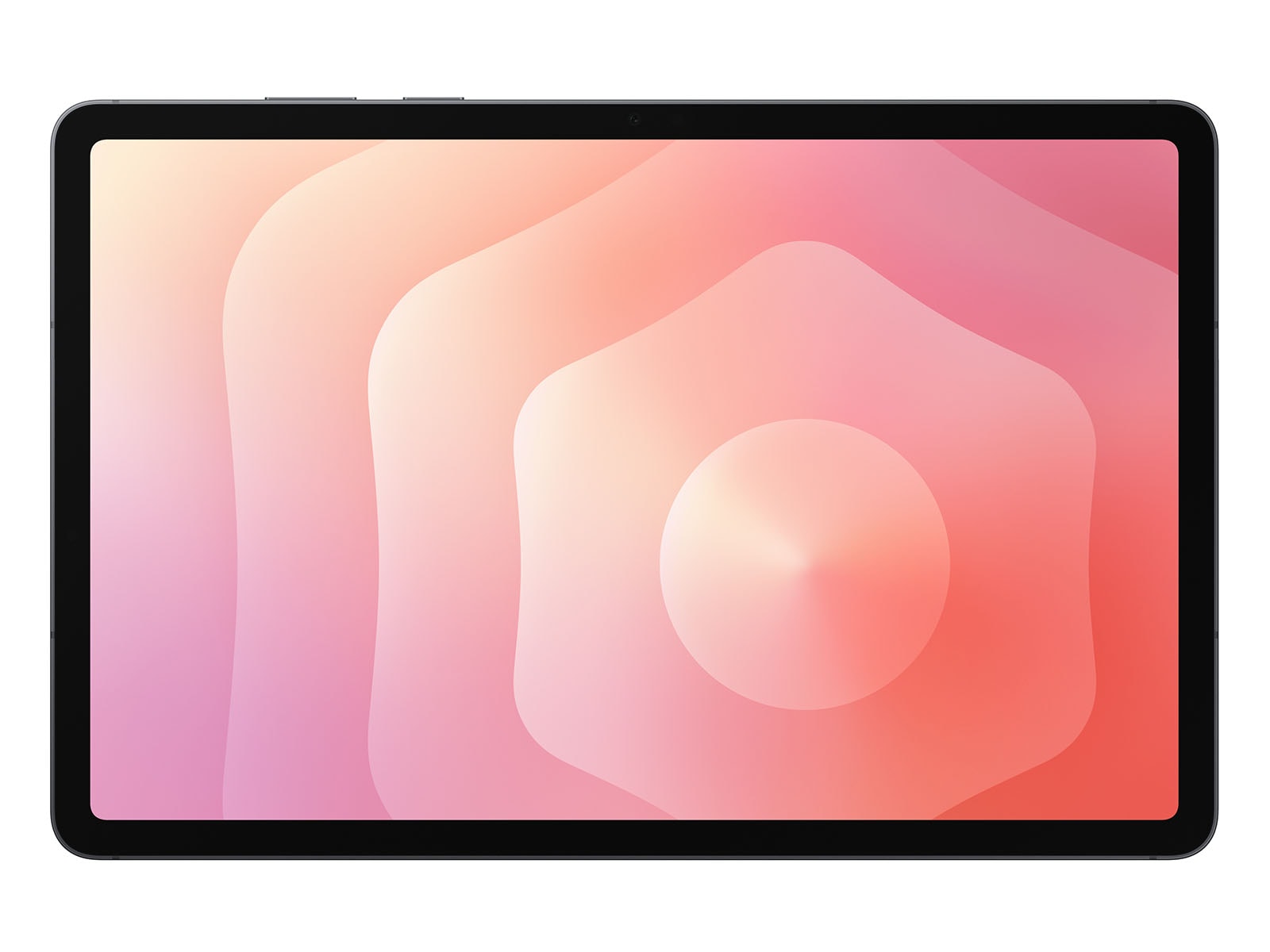
Samsung Galaxy Tab S11 (12GB/512GB Wi-Fi)
Fits: someone who also wants an 11-inch AMOLED Android tablet with 12GB of memory. Samsung lists this display and memory configuration.
Tradeoff: that specification does not show how Albion performs in a crowded fight. Use the settings checklist and choose based on your wider tablet needs.
Settings can change the client; they cannot guarantee an outcome.
This guide uses Albion's published requirements and its own performance discussion. It does not assign a minimum RAM amount for ZvZ or predict a device's frame rate.
Does 12 GB of RAM prevent Albion Online crashes in ZvZ?
No device specification makes that guarantee. Albion lists 4 GB as recommended for Android, while its ZvZ performance article discusses visual effects, UI settings, hardware, and network conditions. It does not publish a tablet configuration that will avoid crashes.
Which Albion Online setting should I lower first for FPS?
For lower-impact options, try Graphics > Visual Quality > Shadows set to Off, and set General > Vanity > Mount Skins / Wardrobe to Only show in safe areas. Albion says these can reduce performance load with less impact on normal play, though the shadows and player appearances will look different. If FPS is still unplayable in a large fight, temporarily try Show Effects set to Self with Spell Indication Areas enabled. This still hides effects such as heals, shields, and beams; restore your usual setting if lost visibility outweighs any improvement you observe. Albion also lists Only My Damage or Off for Damage Numbers in that same unplayable-FPS case. No setting guarantees higher FPS.
Does more RAM improve Albion Online FPS?
The official requirements set a baseline, and Albion's performance guide says hardware such as CPU and storage can affect results. It does not provide a tablet-by-tablet FPS comparison, so RAM alone is not a frame-rate predictor.