Home / Guides / Albion Online tablet for Mists and PvP
Albion Online / Mists and PvP
Tablet and controller setup for Albion Online Mists PvP
Check the whole input loop before taking a new layout into lethal content: movement, target selection, one aimed ability, and the menus you need to reach. Albion now has separate mobile and controller targeting options, so test the ones for your device.
Albion's current client has different controls for touch and controller. Test the settings for the input you plan to use.
Choose one input path. Use touch controls or the dedicated controller HUD. Albion's Radiant Wilds notes describe controller schemes, radial menus, and configurable targeting; do not assume the same option names or defaults for touch.
Check target selection. On mobile, open Controls > Auto-Targeting and choose the target filters you want. Albion's Dragonfire Patch 3 notes say Enemies, Allies, and Party Members filters can be toggled in the HUD while cycling targets or dragging Attack. Select a nearby mob and confirm the target marker before using an ability.
Check ability aim separately. On touch, confirm Show Targeting Line and Range is on; Albion's June 2026 patch notes say it is enabled by default on mobile. If your build has a movement spell, inspect Situational Movement Spell Targeting: Albion's May patch notes say it defaults on for controllers and off for mobile, and can aim movement spells in the facing direction when no suitable target is ahead. Test that spell separately so you know which target behavior your input uses.
Check the menu route. Open inventory and map, then return to the combat HUD. On controller, try the radial menu and the full-screen menu navigation before you need either during a fight.
Use a Solo non-lethal Mists run for this check. Albion's Mists overview distinguishes lethal and non-lethal areas. Confirm the mode before entering; this walkthrough checks controls, not tablet performance in a large fight. For gathering and market use, see the gathering setup guide.
Optional equipment
One compact tablet option
The walkthrough above covers touch and controller controls; this card focuses on tablet size.
Buying through our Amazon links costs you nothing extra and helps keep MMOSetup free. As an Amazon Associate we earn from qualifying purchases.
Compact tablet
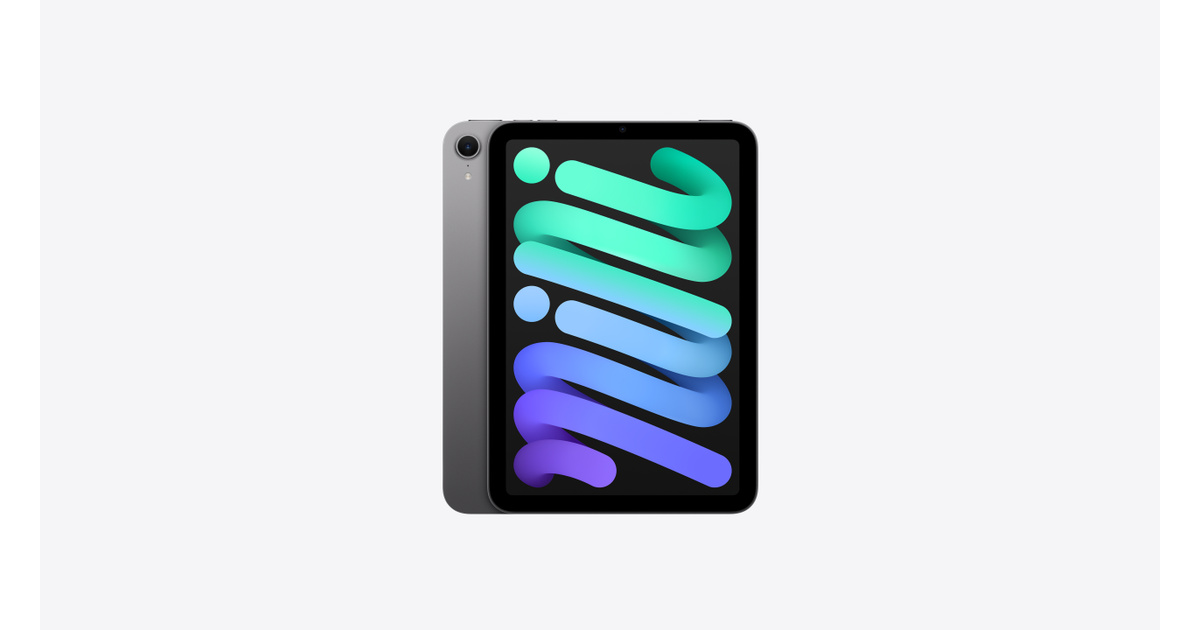
Apple iPad mini (A17 Pro, 128GB Wi-Fi)
Fits: players who prefer a smaller tablet to hold. Apple lists an 8.3-inch display and the A17 Pro chip.
Tradeoff: there is less room for the interface than on an 11-inch-class tablet.
Check the client, device, and control mode together.
This guide uses Albion's controller update, mobile-targeting patch notes, and Mists description. Device pairing can vary, so confirm the current client recognizes the controls before relying on them.
In Controls > Auto-Targeting, choose the Enemies, Allies, or Party Members filters you want to use. Albion says these filters can be toggled in the HUD while cycling targets or dragging Attack. Confirm the selected target before casting; the filters change selection behavior, not every ability's aim.
What should I check when aiming abilities on a tablet?
Albion's June 2026 Patch 3 notes say Show Targeting Line and Range is enabled by default on mobile and can be changed in General > Controls Settings. Check the indicator for the ability you are using, then test a movement spell separately if your build has one.
Where should I practice a new control layout before lethal Mists?
Albion describes both lethal and non-lethal Mists areas. Choose a Solo non-lethal Mists entry to check movement, target selection, an aimed ability, and menu navigation before taking the layout into lethal content.